 ★ Graphic Tools Guide ★ Sega Converter User's Manual
Sega Converter User's Manual
■ Release notes
- ● 4.79J → 4.83J Version upgrade information
- ● Several obstacles have been resolved.
- ● Power PC compatible
- "Sega Converter" works in native mode when launched on a Power Macintosh.
■ Introduction
- "SEGA Converter" is an application that displays image data saved in formats such as PICT, DGT, RGB, and BOB, and converts these files to each other. You can also edit simple retouches and copy and paste.
■ Caution
- If the image data saved in the clipboard when copying and pasting with other applications is too large, the application may not start. In this case, select "SEGA Converter" on the Finder, and then select "Get Info" from the File menu to increase the size of the application used.
■ File menu
- ● New ...
- Displays a dialog and creates a new window for the specified image.
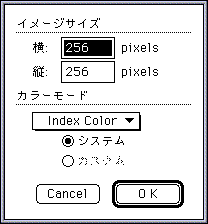
◆ Image size Specify the size of the newly created window. Width: Enter the horizontal size. Height: Enter the vertical size. ◆ Color mode Specify the color mode (BitDepth) of the newly created window. RGB Color: Created in 32bit (RGB mode). Index Color: Created in 8bit (palette mode). ◇ System: Uses the Macintosh system palette. ◇ Custom: Uses the palette saved in the clipboard. - ● Open ...
- Displays an open dialog, reads a file in the specified format, and displays it in a window.
- ● Close
- Close the open window. If there is a change in the file, you will be asked if you want to save it or discard it as it is. If you want to save it, click the "Save" button. Performs the same operation as "Save as ..".
- ● Save
- Overwrite and save the window contents with the same name.
- ● Save as ...
- Displays the save dialog and converts and saves the file in the specified format. If you specify Save Selection, only the selected area is saved.
- ● Catalog
- Displays the catalog dialog and displays / saves all files in the specified format in the specified folder. Click the "Do it" button to execute the catalog, and click the "Cancel" button to close the dialog.
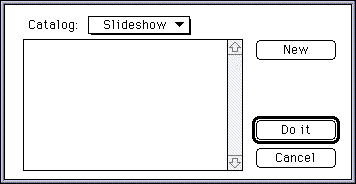
◆ Displays the New Open dialog and registers the file in the specified format in the specified folder as a catalog. ◆ Continuous display Displays the files registered in the catalog continuously. ◆ Save Saves the files registered in the catalog continuously in the specified format. - ● Preferences ...
- Display a dialog and set the storage environment.
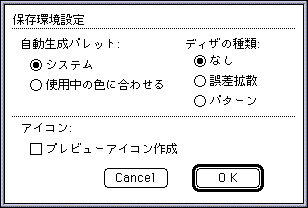
◆ Automatically generated palette When converting from a format without palette information (PICT, RGB, etc.) to a format with palette information (DGT, BOB, etc.), a palette is automatically generated. Specify the method. ◇ System Use the system palette of Macintosh. ◇ Match the color in use Generates a palette optimized for the image. ◆ Type of dither Specify the type of dither processing when the above processing is performed. ◇ None No dither processing is performed. ◇ Error diffusion Dither processing is performed by the error diffusion method. ◇ Pattern Performs pattern dither processing. ◆ Icon ◇ Create preview icon Paste the image to the icon of the saved file. - ● Quit
- Exit the application.
■ Edit menu
- ● Cancellation
- ● Cut
- ● Copy
- ● Paste
- ● Erase
- ● Select all
- Each command conforms to a general paint application. You can copy and paste to and from other applications.
■ Option menu
- Perform operations related to displaying the file (current file) that appears in the table.
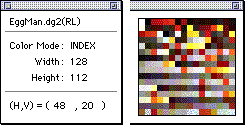
- ● View information
- Displays information about the current file. Clicking on the zoom box expands the window to show the contents of the current file, if it used a palette.
- ● Magnification
- Specifies the display magnification of the current file.
- ● Grid
- Display the grid in the current file.
- ● Horizontal selection unit
- ● Vertical selection unit
- Set the selection (move) unit of the horizontal / vertical selection tool, respectively.
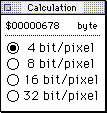
- ● Data calculation
- Calculates the amount of data in the selection.
■ Window menu
- Select the current file.
■ Tool palette
- Each tool conforms to a general paint application.
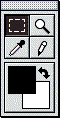
- ● Selection tool
- Specify the rectangular range with "Drag". After selection, it will move to the general floating operation. You can expand the selection with "Shift + drag". Specify the extension method by "double-clicking".
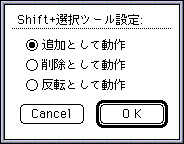
◆ Operation as an addition The specified range is added to the current selection range. ◆ Operation as deletion The specified range is deleted from the current selection range. ◆ Operates as inversion The current selection is inverted (XOR) according to the specified range. - ● Magnifying glass tool
- It will be magnified twice around the clicked point. Click "Option + click" to reduce the size by 1/2. "Double-click" to display at the same size.
- ● Eyedropper tool
- The color of the clicked point becomes the foreground color (drawing color). The background color is specified by "Option + click".
- ● Pencil tool
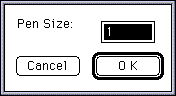
- Draw in the foreground. "Option + click" works like the eyedropper tool. "Double-click" to change the size of the pen.
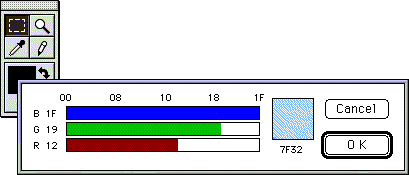
- ● Foreground color / background color box
- Displays the current foreground color and background color. Click the arrow to swap the foreground and background colors. "Double-click" to display the color picker and change the color. If the current file uses a palette, click and drag to select the palette.
★ Graphic Tools Guide ★ Sega Converter User's Manual
Copyright SEGA ENTERPRISES, LTD., 1997