 ★ Graphic Tools Guide ★ Sega Painter User's Manual /
▲ Back | Forward ▼
Sega Painter User's Manual / 3. Tool Palette
■ Selection tools
 Rectangle selection tool
- drag:
- Select a range with a rectangle.
- click:
- Cancels the selection.
- Shift + drag:
- Select a range with a square.
- Control + ?? + Drag:
- The above function adsorbed to the selection unit.
- Option + Shift +
 + Drag:
 - Functions as a drag and drop tool (described later).
- Double-click the icon:
- Set the selection conditions.
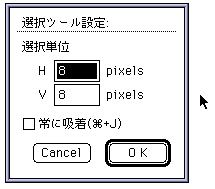
- Selection unit: Specify the unit to be adsorbed.
- Always adsorb: It always works by adsorbing to the selected unit.
" A shortcut of "+ J" is assigned.
- (For palette edit window and color edit window)
- drag:
- Select a range with a rectangle.
- click:
- Cancels the selection.
 Lasso (free shape selection) tool
- drag:
- Select a range with free shape.
- click:
- Cancels the selection.
- Option + click:
- Select a range with a polygon.
- Control + ?? + Drag:
- The above function adsorbed to the selection unit.
- Double-click the icon:
- Set the selection conditions.
 Automatic selection tool
- click:
- Selects a contiguous area of palette code for the clicked point.
- Option + click:
- Select the same palette code area as the clicked point.
- ◆ Calculation function of selected area
- In the selection tool, the selection range is calculated as follows by key operation at the time of selection.
- Shift + drag:
- Add a selection.
- + Drag:
- Delete the selection.
- Shift + + Drag:
- Select a common area.
- ◆ Functions after selection
- After selection, the selection tool functions as follows by key operation.
- drag:
- Moves the image in the selection area. The move source is filled with the background color.
- Option + drag:
- Copy the image of the selection area. The image of the source is the same.
- click:
- Confirm the image being moved or copied.
- Option + + Drag:
- Moves the frame of the selection.
▲ Back | Forward ▼
★ Graphic Tools Guide ★ Sega Painter User's Manual /
Copyright SEGA ENTERPRISES, LTD., 1997