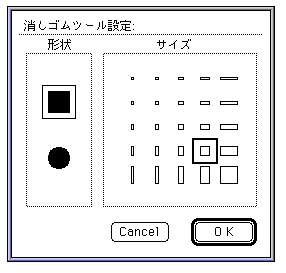
Double-click the Option + icon : The entire palette of displayed indexes (or within that selection if a range is selected)
Erases the color of. Bucket (fill) tool Bucket (fill) tool- click:
- Fills the continuous area of the same palette code as the clicked point with a pattern.
- Option + click:
- Functions as a dropper tool. Set the foreground color.
- Shift + Option + Click:
- Functions as a dropper tool. Set the background color.
 Airbrush tool Airbrush tool- drag:
- Draw in a pattern like an airbrush.
- Option + click:
- Functions as a dropper tool. Set the foreground color.
- Shift + Option + Click:
- Functions as a dropper tool. Set the background color.
- Double-click the icon:
- Set the airbrush style.
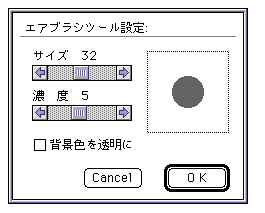
- Size: Specify the size of the airbrush with the scroll bar.
- Density: Specify the density of the airbrush with the scroll bar.
- Make the background color transparent: Draw with the background color transparent.
 Rectangle Fill Tool / Rectangle Tool Rectangle Fill Tool / Rectangle Tool- drag:
- Fill and draw a rectangle with a pattern.
- Shift + drag:
- Fill and draw a square with a pattern.
- Option + click:
- Functions as a dropper tool. Set the foreground color.
- Shift + Option + Click:
- Functions as a dropper tool. Set the background color.
- Double-click the icon:
- Sets the rectangular style.
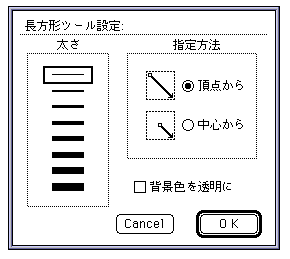
- Thickness: Specify the thickness of the rectangle drawing. This setting does not affect the Rectangle Fill tool.
- Specification method: Select the drawing specification method.
- From vertices: Draws a rectangle with the start and end points of the drag as vertices.
- From center: Draws a rectangle centered on the start point of the drag and with the end point as the apex.
- Make the background color transparent: Draw with the background color transparent.
 Rounded Rectangle Fill Tool / Rounded Rectangle Tool Rounded Rectangle Fill Tool / Rounded Rectangle Tool- drag:
- Fill and draw a rounded rectangle with a pattern.
- Shift + drag:
- Fill and draw a square with rounded corners with a pattern.
- Option + click:
- Functions as a dropper tool. Set the foreground color.
- Shift + Option + Click:
- Functions as a dropper tool. Set the background color.
- Double-click the icon:
- Sets the rounded rectangle style.
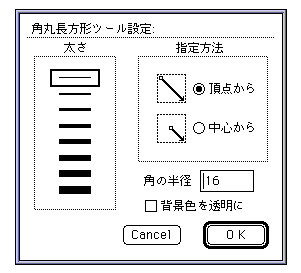
- Thickness: Specifies the thickness of the rounded rectangle drawing. This setting does not affect the Rounded Rectangle Fill tool.
- Specification method: Select the drawing specification method.
- From Vertex: Draws a rounded rectangle inscribed in a rectangle with the start and end points of the drag as vertices.
- From center: Draws a rounded rectangle centered on the start point of the drag and inscribed in the rectangle with the end point as the apex.
- Radius of corners: Specifies the radius of rounded corners.
- Make the background color transparent: Draw with the background color transparent.
 Oval fill tool / Oval tool Oval fill tool / Oval tool- drag:
- Fill and draw the ellipse with a pattern.
- Shift + drag:
- Fill and draw a perfect circle with a pattern.
- Option + click:
- Functions as a dropper tool. Set the foreground color.
- Shift + Option + Click:
- Functions as a dropper tool. Set the background color.
- Double-click the icon:
- Sets the oval style.
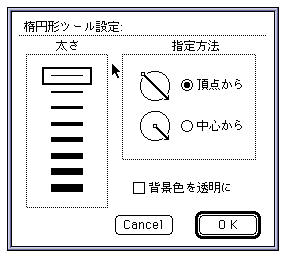
- Thickness: Specify the thickness of the ellipse drawing. This setting has no effect on the Ellipse Fill tool.
- Specification method: Select the drawing specification method.
- From Vertex: Draws an ellipse inscribed in a rectangle with the start and end points of the drag as vertices.
- From center: Draws an ellipse inscribed in a rectangle centered on the start point of the drag and with the end point as the apex.
- Make the background color transparent: Draw with the background color transparent.
 Font tool Font tool- click:
- The character setting dialog is displayed, and the specified font is drawn with a pattern at the clicked point.
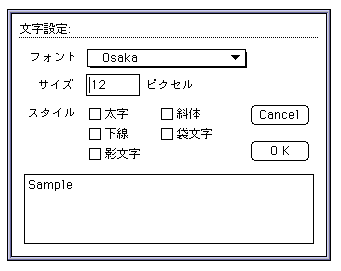
- Font: Specify the font type in the pop-up menu.
- Size: Specify the size of the font.
- Style: Specifies the font style.
▲ Back | Forward ▼
 ★ Graphic Tools Guide ★ Sega Painter User's Manual / ★ Graphic Tools Guide ★ Sega Painter User's Manual /
Copyright SEGA ENTERPRISES, LTD., 1997 |  Eyedropper tool
 + Click:
 Magnifying glass tool
 Brush tool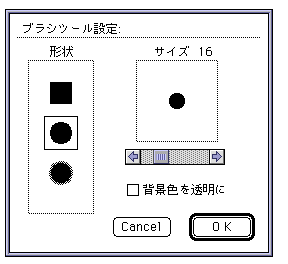
 Pencil tool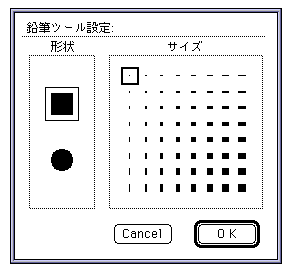
 Line tool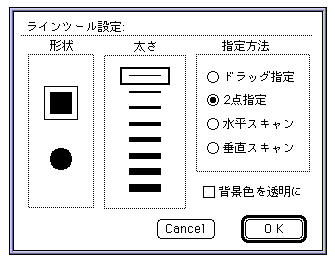
 Eraser tool