 ★ Graphic Tools Guide ★ Quick Viewer User's Manual
Quick Viewer
User's Manual
■ Release notes
- ● 3.1J → 3.17J Version upgrade information
- We have resolved some obstacles.
- Added support for Saturn Cartridge Development System.
- ● Restrictions
- Version 3.17J supports the following SEGA development targets.
- Saturn Target Model-S Graphics Box
- Saturn Cartridge Development System (commonly known as CartDev)
- For precautions when connecting, refer to the manual etc. attached to the target.
- Normal operation cannot be guaranteed if other applications (including a copy of "Quick Viewer") that use the development target are running. When using "Quick Viewer", be sure to make sure that no other application is using the development target.
- Also, if you start another application that corresponds to the development target while using "Quick Viewer", be careful not to connect to the target (click the [Discard] button in the "Select Target" dialog). ..
However, this is not the case if multiple development targets are connected with different IDs. - ● Notes
- Note that shortening the automatic transfer interval will slow down the processing of the Macintosh.
- High resolution mode is available only when using Saturn CartDev.
■ Introduction
- "Quick Viewer" is an application that captures the monitor screen of Macintosh and displays it using the SEGA development target.
You can instantly check the display of images of any Macintosh application on the target TV screen without using files. ■ Restrictions
- Version 3.17J supports the following SEGA development targets.
- Saturn Target Model-S Graphics Box
- Saturn Cartridge Development System (commonly known as CartDev)
- For precautions when connecting, refer to the manual etc. attached to the target. > / P>
■ Basic operation
- When you start the application, the following dialog will be displayed. Set the development target and display mode you want to connect to, and click "OK".
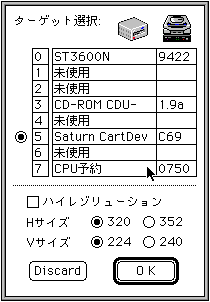
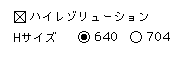
- If Saturn CartDev is connected, the high resolution box will be enabled. If you select the high resolution mode, the H size display will be doubled.
- If the communication with the target box is successful, the following window will be displayed.

- Click in the window to display the image in the capture area on the Macintosh monitor screen on the target TV screen.
- If you want to change the capture area, follow the procedure below.
- Drag the mouse pointer out of the window.
- The marquee of the target TV screen size is displayed, so move it to the position you want to display as it is.
- When you release the mouse button, the capture area is set.
- Display operations can also be performed automatically (automatic transfer) using background tasks. Follow the procedure below.
- If you select "Automatic transfer settings" from the "File" menu, the following dialog will be displayed.
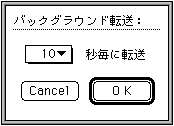
- In the pop-up menu, select the interval for automatic forwarding.
Note that shortening the automatic transfer interval will slow down the processing of the Macintosh.
★ Graphic Tools Guide ★ Quick Viewer User's Manual
Copyright SEGA ENTERPRISES, LTD., 1997