 ★ Graphic Tools Guide ★ Map Editor User's Manual
▲ Back | ■
Map Editor User's Manual 4. menu
■ Menu
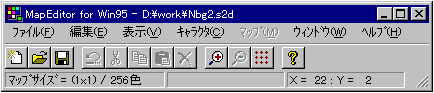
■ File menu
- Performs file management such as file input / output. In addition, processing such as termination is also executed in this menu.
- ◆ New
- Create a new file.
- 【dialog box】
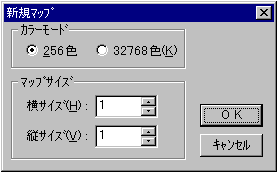
- Color Mode Select the color mode for the new file.
- Size Enter the horizontal and vertical sizes of the new file. The unit is a page.
Page: One page is an area of 512 x 512 pixels (32 x 32 characters).
- ◆ Open
- Open a file that has already been saved. If the file is already open, it will be closed automatically. (Only one map can be edited with "Map Editor".)
- ◆ Save
- Save the file you are currently working on.
- ◆ Save as
- Name the file you are currently working on and save it as a separate file.
When saving to an SGL file , various flags must be set as options. - ◆ Import
- Open the 2D image data that is the material of the character data and display the image window.
[Dialog] (Displayed when the color mode is 256 colors)- Specifies the palette to assign to the scrollbar image window.
- When overwritten is checked, the color table held by the image is placed on the specified palette.
- ◆ 1-4
- 4 files are displayed in order from the recently opened or saved file.
- ◆ End
- Exit the "Map Editor".
■ "Edit" menu
- Edit images such as cut and paste. You can also set the work environment for using the "Map Editor" here.
- ◆ Undo
- Cancels the previous operation. Please note that some functions cannot be undone.
- ◆ Cut out
- Cuts the data in the selection. The clipboard is saved in the clipboard.
The data cut from the character window and map window can also be used as the array information of the "tile" tool. - ◆ Copy
- Copies the data in the selection. The copied data is saved in the clipboard.
The data copied from the character window and map window can also be used as the array information of the "tile" tool. - ◆ Paste
- Paste the data stored in the clipboard on top of the data you are currently working on. The data immediately after pasting is in a movable state (floating state).
The "Paste" feature is also valid between windows with reserved associations.- Example: "Image window"-> "Character window"
Paste the pixel information of the image data as junk data.- "Character window"-> "Map window"
Paste the character data array information as map information. - ◆ Delete
- Erases the data in the selection.
- ◆ Select all
- Select the entire window you are working on.
- ◆ Deselect
- Deselect the window you are working on. Floating data is determined at the current position.
- ◆ Tools
- Each submenu corresponds to a button in the toolbox.
- ◆ Properties
- Make various environment settings.
- [Grid color]
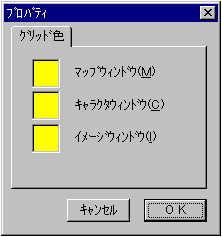
- Map window Specifies the color of the map window grid.
- Character window Specifies the color of the character window grid.
- Image window Specifies the color of the image window grid.
■ "View" menu
- You can change the display magnification of the window you are working on and show / hide the toolbox. In addition, the target display processing corresponding to "SS Monitor / SS Viewer" is also performed here.
- ◆ Magnification
- Enlarges the window you are currently working on at the specified magnification.
- ◆ Grid
- Shows / hides the character-based grid in the window you are currently working on.
The character window also displays a grid in bank (1Mbit) units.
The map window also displays a page-by-page grid. - ◆ Toolbox
- Show / hide the toolbox.
- ◆ Target display
- Shows the file you are currently working on as a target. In order to use this function, "SS Monitor" must be started and "SS Viewer" must be running in advance.
- 【dialog box】
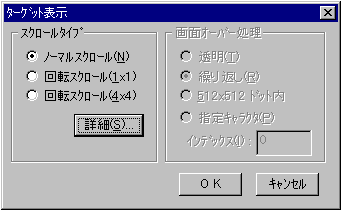
- ● "Scroll type"
Select the type of scroll to display.- Normal scroll Displays in normal scroll. The top, bottom, left and right of the map are connected and displayed.
- Rotating scroll (1x1)
The first 1x1 plane unit map constitutes the floor, and the subsequent 1x1 plane unit constitutes the sky, displaying a rotating scroll screen. The floor can be rotated on three axes. - Rotating scroll (4x4)
The first 4x4 plane unit map constitutes the floor, and the subsequent 1x1 plane unit constitutes the sky, displaying a rotating scroll screen. The floor can be rotated on three axes. - Detailed SGL options can be set. (See "◆ SGL Option" below)
- ◆ SGL option
- If you want to save the file in SGL format or display it on the target, you need to set the VDP2 flag according to your purpose. For details on each flag, refer to the "SEGA Saturn Hardware Manual".
- 【dialog box】
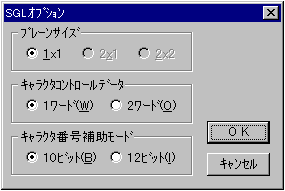
- Plain size
Specify the plane size (in pages). If the map size (page unit) is not divisible by the plane unit, the plane size cannot be selected. - Character control data
Specifies the data size of the pattern name data. - Character number auxiliary mode
If the character control data is one word, specify the number of bits to be allocated to the character number.
- ● "Screen over processing"
Select the display processing method outside the display area (4 x 4 plane unit) of the rotary scroll that composes the floor surface.- All areas outside the transparent area are displayed transparently.
- Outside the repeat area, the map inside the display area is displayed repeatedly.
- All areas outside the 512-dot x 512-dot area within 512 x 512 dots are displayed transparently.
- The character specified by the specified character index is displayed repeatedly.
■ "Character" menu
- It can be used when the character window is active. Edits the character data of the selection or the entire window.
- ◆ Inversion

- Inverts the characters in the specified range line-symmetrically at the center of the selection.
- Horizontal direction Flip horizontally.
- Vertical direction Flip vertically.
- ◆ Rotation

- Rotates the specified range of characters around the center of the selection. After the rotation process, the characters in the selected range will be in a floating state.
- 90 degrees clockwise Rotate 90 degrees clockwise.
- Counter-clockwise 90 degrees counter-clockwise to rotate 90 degrees.
- ◆ Display palette
- Select the color table to use for displaying the character window from the color palette.
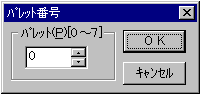
The palette set here does not affect the character palette information in the output file. The purpose is to improve editing efficiency based on intuitive visual effects. - ◆ Palette
- Specify the palette number to use for display.
- 【dialog box】
- ◆ Character sort
- Merges the same character data that exists in the selection and sorts them in order from the top. The map data will be modified to reflect the sort results. It is mainly used for the purpose of deleting unnecessary character data and keeping the amount of data within the limit range.
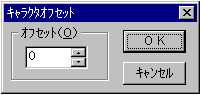
- ◆ Offset
- Moves the characters in the selection by the specified amount. The map data will be modified to reflect the movement results.
- 【dialog box】
■ "Map" menu
- It can be used when the map window is active. Edit the map data for the selection or the entire window. You can also set and change the color palette here.
- ◆ Horizontal inversion
- Set the H inversion flag for the map data in the specified range.
- ◆ Vertical inversion
- Set the V inversion flag for the map data in the specified range.
- ◆ Palette
- Set the palette number of the map data in the specified range.
- 【dialog box】
- ◆ Map size
- Change the editing area of the map window.
- 【dialog box】
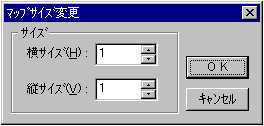
- Horizontal size Specify the horizontal size of the map after the change in page units.
- Specify the horizontal size of the map after changing the vertical size in page units.
- ◆ Palette editing
- Change or edit the color palette.
- 【dialog box】
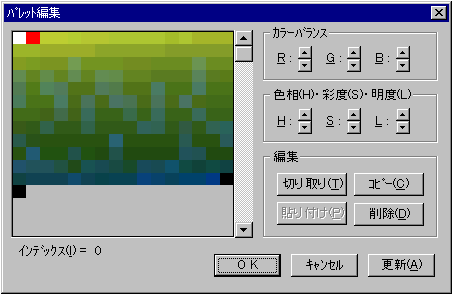
- Click the color list Change the color data at the specified position.
- Scroll bar Changes the index of the palette to be edited.
- ● "Color balance"
- Change the color balance of the currently displayed palette.
- R
Change the red intensity. - G
Change the green intensity. - B
Change the blue intensity.
- ● "Hue / Saturation / Brightness"
- Change the color of the currently displayed palette.
- H
Change the hue. - S
Change the saturation. - L
Change the brightness.
- ● "Edit"
- Move or copy the currently displayed palette.
- Cut Cut the pallet. The cut palette is filled with black code.
- Copy the copy palette. The copied palette remains the same.
- Paste Paste the "cut" or "copied" palette in advance.
- Delete Delete the palette. The delete palette is filled with black code.
■ "Window" menu
- Shows the type and name of the window currently displayed on the screen. It also determines how to align each window.
- ◆ Overlapping
- The windows are overlaid from the upper left.
- ◆ Displayed side by side
- All windows are displayed side by side.
- ◆ Displayed side by side
- All windows are displayed side by side.
- ◆ Alignment of icons
- Aligns all minimized (iconified) windows.
■ "Help" menu
- Displays a help file that explains how to use the "Map Editor". It also displays the information of "Map Editor".
- ◆ Table of contents
- Displays the table of contents of the help file.
- ◆ Version information
- Information such as the version of "Map Editor" is displayed.
▲ Back | ■
★ Graphic Tools Guide ★ Map Editor User's Manual
Copyright SEGA ENTERPRISES, LTD ,. 1997