Here, we will explain the functions related to Gouraud (vertex color) on Softimage3D.
<Case 1>
When setting in Paint for a polygon model without texture.
- Select the model for which you want to color the vertices and click the Paint menu.
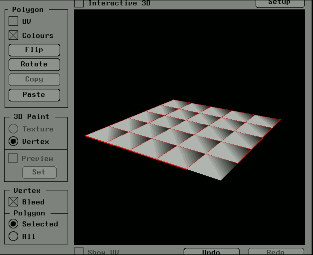
- Press Shift + h + left mouse button to display the edges of the polygon. All edges are highlighted. (Displayed as a red dotted line.)
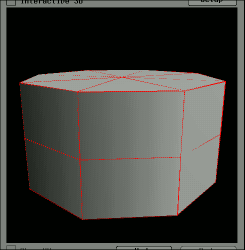
- Since 3D Paint → Vertex is ON, you can color directly in the 3D viewer. If the Vertex → Bleed option is ON, all polygons adjacent to the specified vertex will be affected by the color. (Note) Since the triangle division of a quadrilateral polygon differs depending on the system, the display on Softimage3D and the display on Saturn may differ.
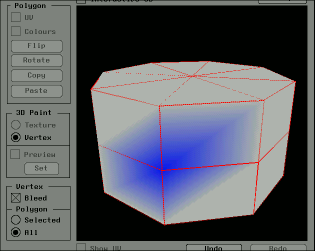
- If Vertex → Bleed is ON and Polygon → Selected is selected, only the polygon selected with the g key will be affected.
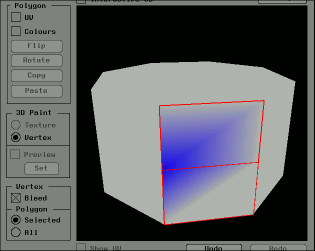
- To copy the Gouraud information of the selected polygon, turn on Polygon → Colors , and then click the Polygon → Copy button. Select the polygon you want to paste using the g key. (To select all but the selected polygons, press Shift + g + right mouse button.)
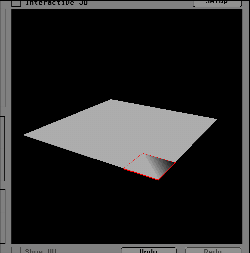
<Case 2>
When setting in Paint for a polygon model with a texture.
- Select the vertex you want to color in the 3D viewer while pressing the t key + left mouse button. In this example, the points at the edges of the grid are selected. The one displayed in green is the polynode.
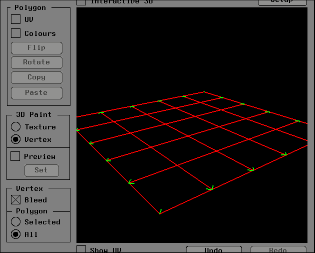
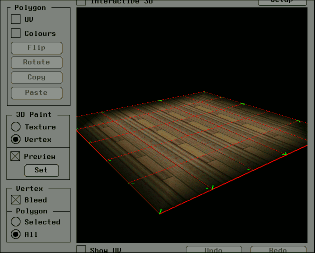
- After turning on 3D Paint → Preview , you can check the result in the 3D viewer by specifying the color in the color palette. To decide the color, press the 3D Paint → Set button.
<Case 3>
When setting the color of vertices by calculating the light source. (Mental Ray license required)
- Prepare a light and a polygon mesh model.
- Select Matter → Mat_Oper → Generate Vertex Colors and pick the prepared model.
- A dialog box opens. Here, you can specify which polygon mesh to calculate and which part to calculate.
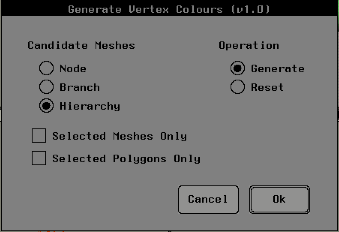
- If you select a polygon with the y key or g key and then turn on Selected Polygons Only , only the vertices of the selected polygon will be colored.
- The Shading Model for polygons with colored vertices is Vertex Colors . You can change to another Shading Model using the Material Editor.