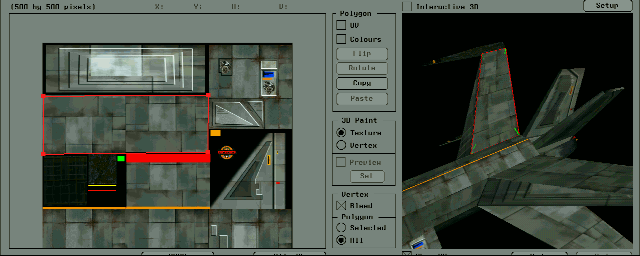
Here, we will explain the functions related to texture mapping on Softimage3D.
<Case 1>
When sharing one texture with multiple polygons.
- First, define the material for the entire model with Matter → Material.
- Click the polygon you want to map with the left mouse button while holding down the g key.
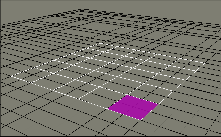
- Select Polygon → Automatic Texture → Material + Texture + Coord. And press Ok. The 2D texture editor will open, where you can define the texture. If you use this command, it will be mapped in the UV coordinate system from the beginning. Press the Ok button to exit this texture editor once.
- Click the Paint menu.
- In the 3D viewer, hold down the g key and click the polygon you mapped earlier with the left mouse button. The outline of the mapped polygon becomes a solid red line.
- If you turn on Show UV at the bottom left of the 3D viewer, a solid red line will appear on the texture on the left.
- Turn on Polygon → UV on the left side of the 3D viewer and press the Copy button.
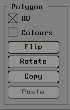
- To select polygons other than the selected polygons at once, move the cursor in the 3D viewer and press Shift + g + right mouse button (Toggle all polys).
- Press the Polygon → Paste button. This will paste the texture for the polygons you selected later.
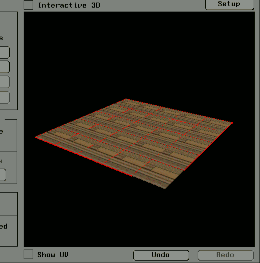
- If the orientation of the pasted texture does not match the desired orientation, select only that polygon and execute Polygon → UV ON Polygon → Rotate or Polygon → Flip. All polygons can be deselected by pressing Shift + g + middle mouse button (Unselect all polys).
<Case 2>
Edit UV coordinates.
- Click the polygon whose UV coordinates you want to edit with the left mouse button while holding down the g key in the 3D viewer.
- When Show UV is turned on, a solid red line is displayed in the texture area on the left.
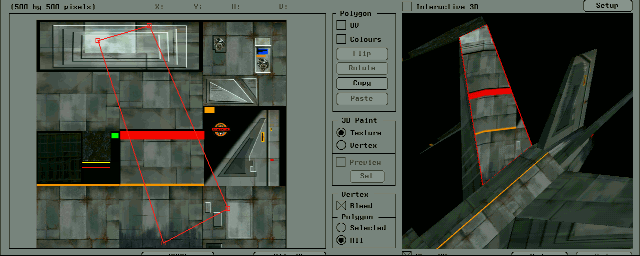
- You can move individual UV handles with the left mouse button while holding down the m key. To select multiple UV handles, hold down the t key + left mouse button and enclose it in a rectoangle. When selected with the t key, scale, rotate, and move using the x, c, and v keys.