 ★ SOUND Manual ★ SCSP / DSP Linker User's Manual /
▲ Back | Forward ▼
SCSP / DSP Linker User's Manual 2. Menu
■ File menu
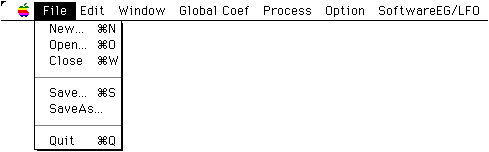
- New
- A new algorithm edit screen opens. Immediately after selecting this item, you need to enter the name of the algorithm (link information file name). This file name is automatically given the extension ".YLI".
- Open
- Open the algorithm stored in the link information file (YLI).
Immediately after selecting this item, select the link information file in the standard file open dialog. The algorithm edit screen opens, the specified file is read, and the algorithm is displayed. - Save
- The algorithm currently being edited is saved in the link information file (YLI). The save file name will be the name of the current algorithm. The extended executable file (EXL) and the binary executable file (EXB) are also output at this time.
- Save As ...
- Saves the algorithm currently being edited in the link information file (YLI).
Immediately after selecting this item, enter and specify the save file name in the standard save dialog. The extended executable file (EXL) and the binary executable file (EXB) are also output at this time. - Close
- The algorithm edit screen currently being edited is closed.
- Quit
- The linker will end.
■ Edit menu
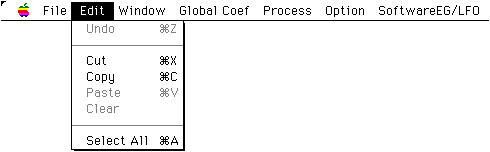
- Undo
- The last edit made will be cancelled.
- Cut
- The selected module or connection will be deleted. If you delete the module, the connected connections will also be deleted. Deleted modules and their information are stored in the Paste buffer.
- Copy
- The selected module is saved in the Paste buffer with that information.
- Paste
- Modules stored in the Paste buffer by Cut or Copy are displayed on the Algorithm Edit screen. The displayed position is the last clicked position in the algorithm edit screen.
- Clear
- ?? ?? ?? ?? ?? ?? ?? ?? ?? ?? ?? ?? ?? ?? ?? ?? ?? ?? ?? ??
- SelectAll
- All modules and connections are selected.
■ Window menu
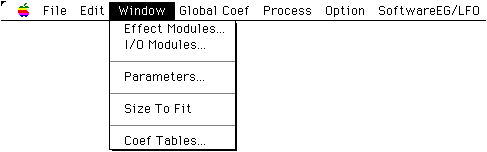
- EffectModules
- The Effect module selection screen opens. If it is already open and behind another screen, it will be brought to the foreground.
For the module placement method, see "Module placement" in "4. Algorithm Edit". - I / O Modules
- The I / O module selection screen opens. If it is already open and behind another screen, it will be brought to the foreground.
For the module placement method, see "Module placement" in "4. Algorithm Edit". - Parameters
- The parameter edit window for the selected module opens. Instead of selecting this item, you can double-click the module selection field to do the same.
- SizeToFit
- Reduces the contents of the algorithm edit screen so that the entire algorithm can be seen. You cannot edit the algorithm in the reduced display. Also, if everything is displayed from the beginning, it will not be reduced. Select this item again to restore the original size. A check mark is displayed to the left of this item during reduced display.
- CoefTables
- A "coefficient table allocator" for handling coefficient table data is opened on the linker. If you register the coefficient table file in "Coefficient table allocator", the coefficient table data is linked to the executable file, and you can use the Effect module that requires the coefficient table.
The "coefficient table allocator" is as follows: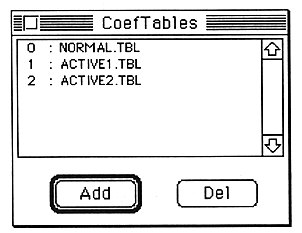
- Click the "ADD" button to additionally register the coefficient table file.
Click the "DEL" button to unregister the selected coefficient table file. When unregistered, the number of the coefficient table file after that is packed. Therefore, please note that it may be necessary to change the specification of the coefficient table number of the module. - reference
- A coefficient table file is a data file that contains binary data of A00H size and has an extension of ".TBL". The dynamic filter module requires this, but you can change the filter characteristics such as resonance by changing this coefficient table file.
■ Global Coef menu

- Define Global
- The global coefficient definition screen opens. If this screen is already open and behind another screen, it will be brought to the foreground.
- AlterToGlobal
- The Global Coefficient Use screen opens. This item can only be selected when you have selected a globalizable factor in the Parameter Edit window. As a general rule, parameters whose unit is displayed in [%] can be globalized.
- RevertToLocal
- The globally specified coefficients selected in the parameter edit window are returned locally. This item can only be selected when the Parameter Edit window is active.
■ Process menu

- Link
- In the current algorithm configuration, the number of steps of the program, whether the internal memory usage exceeds the hardware limit, etc. are checked, and the result is displayed.
- Download
- The data created by the menu item “Link” is transferred to SCSP in the form of an executable format.
■ Option menu

- RingBuffer
- A dialog appears in which you can specify the size of the ring buffer used by the current algorithm.
- SCSI ID
- The SCSP / DSP / linker uses SCSI to transfer data to the SCSP. Normally, the SCSI ID is set automatically when the linker is started, but if you select this item, a dialog for deciding the ID will be displayed and you can reset the ID.
■ Software EG / LFO menu
- This menu is used to set parameters for generating EG / LFO waveforms (Software EG / LFO) on the sound CPU. SoftwareEG / LFO virtually realizes up to 32 EG / LFO elements by software, although it depends on the load status of the sound CPU.

- NumberOfElements
- Selecting this item opens the Number Of Elements dialog (discussed below).
- MasterSwitch
- Selecting this item opens the Master Switch dialog (discussed below).
- # 0 to # 31
- Selecting any of these items will open the Software EG / LFO Element window (discussed below) corresponding to that number. If it is already open, it will be in the active view.
● Dialog / Window
Number Of Elements dialog
- This dialog sets the maximum number of SoftwareEG / LFO elements that can be used. If the setting value is set to N in this dialog, N elements from Element # 0 to Element # (N-1) will be enabled.
Also, only the element data within the range enabled here will be linked to the executable file. "Master Switch" dialog
- Use the check boxes in this dialog to set ON / OFF for each element. The check box numbers represent the SoftwareEG / LFO element numbers.
Software EG / LFO Element window
- EG / LFO switching radio button Sets whether the element functions as an EG or an LFO. All displays related to functions on the unselected side are grayed out.
- MIDI Ch
- Set the MIDI Ch to receive Note information for driving the EG.
- Hold Time
- Set the Hold time in [ms] units.
- Hold Level
- Sets the EG level during the Hold period.
- Attack / Decay / Slope / Release Rate
- Set the Rate of each state of Attack / Decay / Slope / Release.
- Attack / Decay / Slope / Release Level
- Set the level of each point of Attack / Decay / Slope / Release.
- graph
- The change over time of EG is calculated from the set value of each EG parameter and displayed as a graph. You can zoom in / out or move the time axis by setting the following two radio buttons.
- Time axis magnification setting radio button
- Enlarges / reduces the time axis of the EG graph.
- Time axis origin setting radio button
- Moves the origin of the time axis of the EG graph to the beginning of any segment of the EG graph.
- Amplitude
- Sets the amplitude of the LFO.
- Frequency
- Sets the frequency of the LFO.
▲ Back | Forward ▼
★ SOUND Manual ★ SCSP / DSP Linker User's Manual /
Copyright SEGA ENTERPRISES, LTD., 1997