Graphic Tools GuideSega Painter User's Manual /
Back | ■
Sega Painter User's Manual

5. Animation


■ Notes

 caution
If the target is not connected, the animation function cannot be used.
Also, if you have a Model-S graphics box connected, you cannot perform drawing operations while the animation is running.

■ Object registration

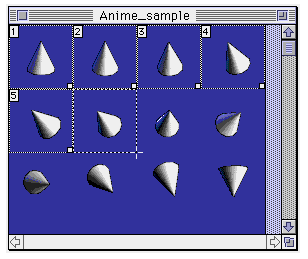
Make the document window of the object to be registered for animation current and select the edit layer of the tool palette.

If you drag the image on the document window in this state, the selected area will be treated as an object for animation.

The object number assigned at the time of registration will be used in the animation registration described later.

■ Animation registration

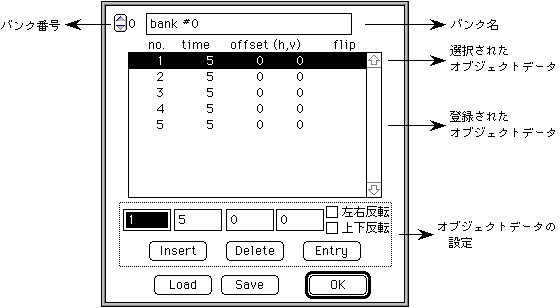
To register the animation data table, select "Register Animation" from the special menu to open the editing dialog.

● Bank
Animation data tables can be created up to bank 16.
When you select a bank to register, the bank name, registered object data, etc. are displayed.

● Object data
Set the value required to play the animation and register it as an object.

no .: Object number
Sets the object number set on the current document window.

time: Playback time
Sets the time to display the object. (Unit: Into = 1/60 second)

offset (h, v): Playback position
Sets where the object will appear on the monitor window.

flip: flip
Set to invert the object.

● Object data settings

Insert: Inserts data before the selected object data.
If no object data is selected, add the data to the end of the bank.

Delete: Deletes the selected object data.
If no object data is selected, the data at the end of the bank will be deleted.

Entry: Confirms the value of the selected object data.
If no object data is selected, add the data to the end of the bank.

● Load
Load the animation data. The currently registered data will be overwritten.
If the read data is for one bank, it will be read into the currently selected bank.
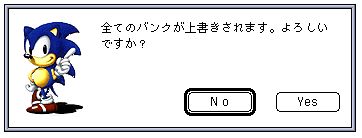
If the read data is for 16 banks, a dialog will be displayed asking if you want to erase all the data and read.

● Save
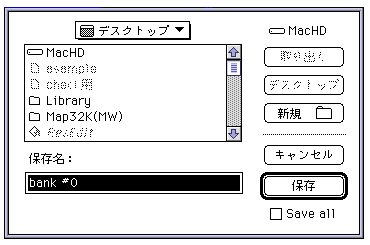
Save the animation data.

□ Save all:
Check if you want to save the data of all banks.

■ Execution of animation

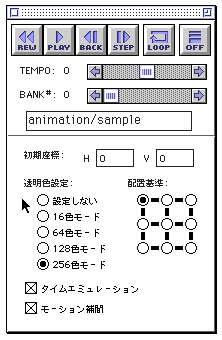
To play the animation, select Show Panel from the window menu to open the panel window.

i5_06_00 Play / Stop button
Plays the animation on the target according to the registered objects, animation data and the contents set in the panel.
Also, it switches to the stop button during playback.

i5_06_01 Rewind button
The playback start position is returned to the beginning for the animation stopped during playback.

i5_06_02 Step play button
Each time you click each button, you can go one step back and forth to display the object.

i5_06_03 Loop button
Sets and cancels animation loop playback.

i5_06_04 Animation off button
Clears the animated object from the display on the target.

● TEMPO
Specify a value in the scroll bar to make the animation play faster or slower overall.

● BANK
Specify the bank number of the animation data to be played.

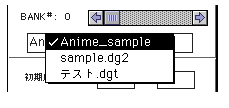
● Document name
Specifies the document window to play.
Click this item to display a pop-up menu with a list of currently open document windows.

● Initial coordinates
Sets the initial coordinates for displaying the animation.
The display position of the object is the location where the offset value of the animation data is added to this setting value.

● Transparent color setting
The object is displayed with the 0th color as the transparent color in the specified palette unit.

● Placement criteria
Specifies which position of each object to display as a reference point.

● Time emulation
Check this to prioritize the total playback time by thinning out the frames that should be displayed when a processing delay occurs.

● Motion interpolation
Check this when performing coordinate interpolation between displayed objects.

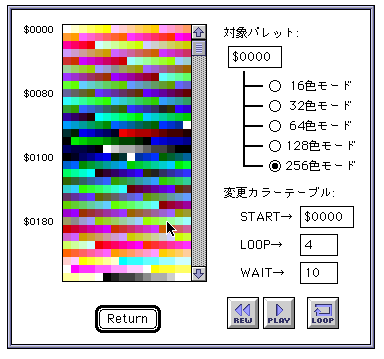
■ Execution of tone animation

To perform a tone animation, select "Tone Animation" from the special menu to open a dialog for setting parameters.

● Target palette
The start address of the palette used by the document window to be displayed, and the unit for changing the palette.

● Change color table

START:
Specifies the start address of the palette used for tone animation.
The START value can also be specified by clicking the color list.
Pallet change is performed in pallet units in order from the start address specified here.

LOOP:
Specifies the number of palettes to use for tone animation.

WAIT:
Specify the display time for one palette change. (Unit: Into = 1/60 second)

Run, stop button
Performs tone animation. Also, it switches to the stop button during execution.

Rewind button
If the tone animation is stopped in the middle of execution, the execution start position of the tone animation is returned to the start address.

Loop button
Sets and cancels the loop execution of tone animation.


Back | ■
Graphic Tools GuideSega Painter User's Manual /
Copyright SEGA ENTERPRISES, LTD., 1997