 ★ Graphic Tools Guide ★ Sega Painter User's Manual /
▲ Back | Forward ▼
Sega Painter User's Manual 4. Palette color
■ Palette editing
- Edit the palette information.
The image of the document you are currently working on (within the selected range, if selected) will be edited.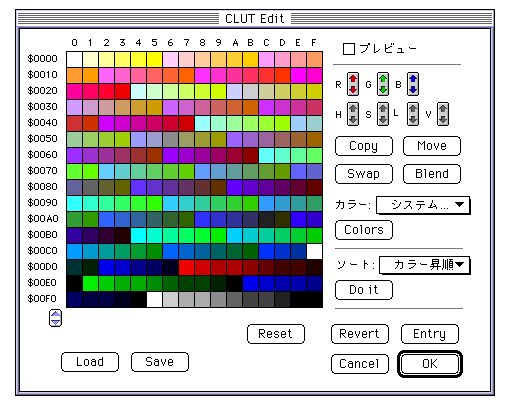
- □ Preview
- Before actually confirming the edited result, display it on the selected document window (to be edited) and confirm it.
- □ Color change
- When you make the next edit, edit the color as well as the palette number.
- Change:
- Specify the palette number in the specified range as the copy source.
Click the destination and overwrite the palette code. - Swap:
- Specify the palette number in the specified range as the replacement source.
Click the replacement destination to replace the palette code.
- ● Sort
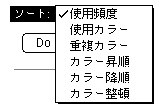
- Click the Do It button to sort the palette.
If a range is selected on the displayed color table, it will be sorted within that selection.
If a range is selected in the document window you are currently working on, only the palette codes within that selection will be sorted. - frequency of use:
- Sort the palettes in order of frequency of use.
- Color used:
- Sort the palette by the color used.
- Duplicate color:
- Sort the palette by sorting the same colors among the colors used.
At this time, if the key is pressed, the palettes erased by sorting are padded. - Color ascending order:
- Sort the palette in ascending order of color brightness.
- Color descending:
- Sort the palettes in descending order of color brightness.
- Color tidy:
- Sorts used colors in front and unused colors in back.
- ● Reset
- Restores the palette you were currently working on and the document window you are editing to the state it was in when you started editing.
All work up to that point will be discarded. - ● Revert
- Restores the palette you were currently working on and the document window you are editing to the last saved state.
The work up to that point will be discarded. - ● Entry
- Convert and confirm the palette and the document to be edited based on the work contents up to now.
- ● Cancel
- Discards all work up to now and ends palette editing.
- ● OK
- Convert and confirm the palette and the document to be edited based on the work contents so far, and finish the palette editing.
■ Palette editing tool
- The selectable tools for palette editing are as follows.
- Selection tools
 Rectangle selection tool
 - drag:
- Select a range with a rectangle.
- click:
- Cancels the selection.
- Special tools
 Drag and drop tool
 - Palette edit window → Palette edit window:
- Set the drag source color code to the dropped palette code.
- Palette edit window → Palette window:
- Set the drag source color code to the dropped palette code.
- Palette edit window → Color picker window:
- Set the edit color of the color picker to the color code of the drag source.
- Palette window → Palette edit window:
- Set the drag source color code to the dropped palette code.
- Color box in the color picker window → Palette edit window:
- Sets the edit color of the color picker to the dropped palette code.
■ Color editing
- Edit the color palette information managed by SegaPainter.
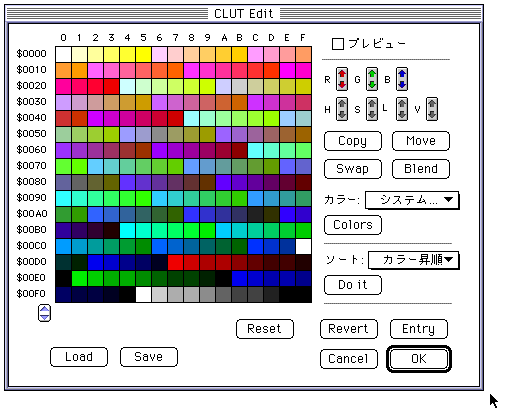
- □ Preview
- Before actually converting the edited result, display it on the document window (to be edited) and check it.
- ● RGB color / HSL color / V (intensity) button
- Adjust the RGB, HSL, and V values of the selection.
Click the up arrow on each button to increase the value, and click the down arrow to decrease the value.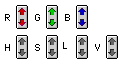
- ・ Strength of red
- ・ Green strength
- ・ The strength of blue
- ・ Color
- ·saturation
- ・ Brightness
- ·Strength
- ● Copy
- Specify the color of the specified range as the copy source.
Click the copy destination and overwrite the color code. - ● Move
- Specify the color of the specified range as the move source.
Click the destination and overwrite the color code. The specified source color is erased. - ● Swap
- Specify the color of the specified range as the replacement source.
Click the replacement destination to replace the color code. - ● Blend
- Gradation is added to the first color and the end color within the selection range.
- ● Color
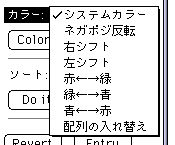
- Click the Colors button to convert colors.
- System color:
- Converts the colors in the selection to the colors in the system palette.
- Negative / Positive Inversion:
- Inverts the colors in the selection.
- Right shift:
- Shifts each color in the selection by one to the right.
- Left shift:
- Shifts each color in the selection by one to the left.
- Red ← → Green:
- Swaps the R and G values of the colors in the selection.
- Green ← → Blue:
- Swap the G and B values of the colors in the selection.
- Blue ← → Red:
- Swap the B and R values of the colors in the selection.
- Swap array:
- Swap the vertical and horizontal arrangement of the color array.
- ● Sort
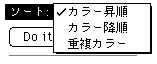
- Click the Do It button to sort the palette.
- Color ascending order:
- Sorts the palettes within the specified range in ascending order of brightness.
- Color descending:
- Sorts the palettes within the specified range in descending order of brightness.
- Duplicate color:
- Erases the color of the palette that has a duplicate color code in the palette within the specified range.
- ● Load
- Imports a Photoshop CLUT format file.
The data will be loaded into the palette for one index currently being edited. - ● Save
- The palette for one index currently being edited is saved as a Photoshop format CLUT file.
- ● Reset
- Restores the color table you were currently working on and the document window you are editing to the state it was in when you started editing.
All work up to that point will be discarded. - ● Revert
- Restores the color table you were currently working on and the document window you are editing to the last saved state.
The work up to that point will be discarded. - ● Entry
- Convert and confirm the color table and the document to be edited based on the work contents so far.
- ● Cancel
- Discard all the work you have done so far and finish the color editing.
- ● OK
- Convert and confirm the color table and the document to be edited based on the work contents so far, and finish the palette editing.
■ Color editing tools
- The selectable tools for color editing are:
- Selection tools
- Rectangle selection tool
- drag:
- Select a range with a rectangle.
- click:
- Cancels the selection.
- Drawing tools
 Eyedropper tool
 - click:
- The color of the clicked point is displayed on the color picker.
 Eraser tool
- drag:
- Erases the color of the clicked point.
- Double-click the Option + icon:
- Erases the color of the entire palette of displayed indexes (or within the selected range if it is selected).
- Special tools
- Drag and drop tool
- Color edit window → Color edit window:
- Set the drag source color code to the dropped palette code.
- Color edit window → Palette window:
- Set the drag source color code to the dropped palette code.
- Color edit window → Color picker window:
- Set the edit color of the color picker to the color code of the drag source.
- Palette window → Color edit window:
- Set the drag source color code to the dropped palette code.
- Color box in the color picker window → Color edit window:
- Sets the edit color of the color picker to the dropped palette code.
▲ Back | Forward ▼
★ Graphic Tools Guide ★ Sega Painter User's Manual /
Copyright SEGA ENTERPRISES, LTD., 1997