 ★ Graphic Tools Guide ★ SpriteEditor User's Manual
▲ Back | ■
SpriteEditor User's Manual
■ Launching the tool
- When working with the target, first make sure that the target machine and Macintosh are connected before launching SpriteEditor.
When "SpriteEditor" is started, a dialog for specifying whether or not the target is connected is displayed.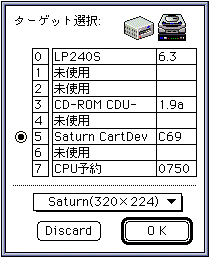
- If you want to use the target, specify the monitor mode in the pop-up menu and then select "OK". If you do not want to use the target, select "Discard".
■ Sprite registration
- When creating a new file, first select "New" from the file menu to set the main window for data registration.
Select "Import" from the file menu to load the graphic data to be registered as a sprite. For graphic data using the palette, the palette registration dialog is displayed when loading.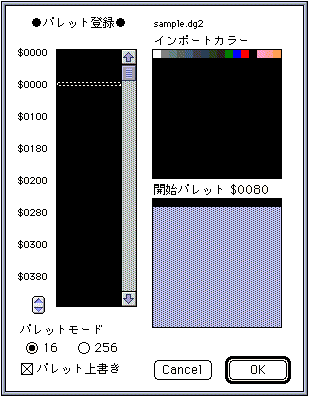
- Here, you can set the palette address, color mode, color overwrite, etc.
After completing the settings, reading the graphic data will start.- To import multiple files at once, select the target file on the Finder and drag and drop it onto the "SpriteEditor" icon.
In this case, the buttons in the palette registration dialog will switch as follows.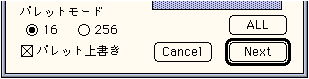
- Select "ALL" if all files have the same settings, and select "Next" if individual settings are required for each file.
- If the graphic data is a file output from SegaPainter and the animation settings have been made on "SegaPainter", the following confirmation dialog will be displayed.
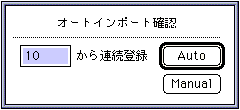
- If you want to register the sprite by using the object information set in "SegaPainter" as it is, specify the registration position (current number of registered sprites + 1 can be specified) and select "Auto".
If you want to cut a completely new sprite, select "Manual".- An import window will open based on the contents of the loaded file.
The dragged area on this window is cut and registered as a sprite.
In addition, the information of the registered sprite is displayed in the main window.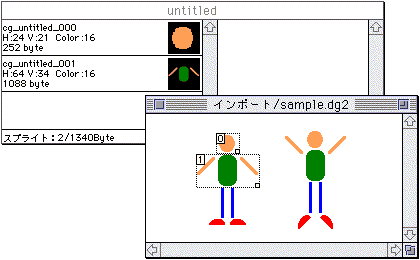
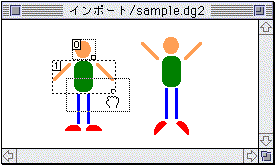
- To move the cut area to a sprite that has already been registered, click and drag the sprite to move on the import window.
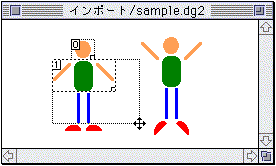
- Also, if you want to resize the cut area, drag the lower right corner after selecting the sprite.
- If you need to limit the amount of mouse movement during cutting, change the setting value in "Preferences" of the File menu.
■ Remove sprites
Next, the sprite selected by selecting "Cut" from the edit menu or pressing the "delete key" will be deleted. ■ Change sprite registration order
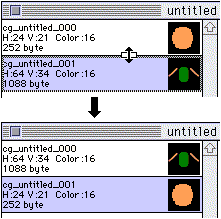
- To change the sprite registration order, click and drag the sprite to be moved on the main window.
■ Sprite output
- The procedure for individually outputting registered sprites as image data in DGT2 format is shown below.
- If you select "Export" from the File menu, a dialog for selecting the sprite to be output will be displayed.
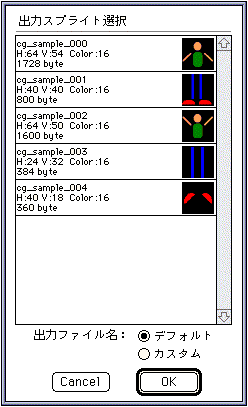
- Click to select the sprite you want to output.
Click the selected item again to deselect it.
In addition, specify the output file name.
Select "Default" if you want to output all the sprite names automatically generated by "SpriteEditor", and select "Custom" if you need to change the output file name individually.- Next, specify the output destination folder.
If "Default" is specified, all selected sprites will be output to the specified folder at once. ■ About pattern data format
- The pattern consists of the placement information of multiple sprites.
There are the following two types of this placement information.- This is the data for creating a pattern with a standard sprite.
The position is represented by the relative coordinates from the "origin" of the pattern to each vertex of the sprite. - Data for creating a pattern with rotated sprites.
Set any center point for each sprite and have the relative coordinates of the pattern origin and this center point.
Furthermore, pattern data is formed from the relative coordinate values and rotation angle data between this center point and each sprite vertex.
- * You do not need to be aware of the above two data formats while working. Both formats are always output to the saved file.
■ Pattern registration
- Select "New Pattern" from the pattern menu to reserve a pattern editing area.
Information is displayed on the main window each time a pattern is added.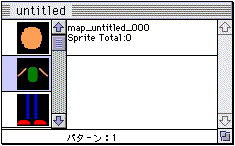
- Select the pattern to edit on the main window.
Next, select "Edit pattern" from the window menu to display the pattern edit window.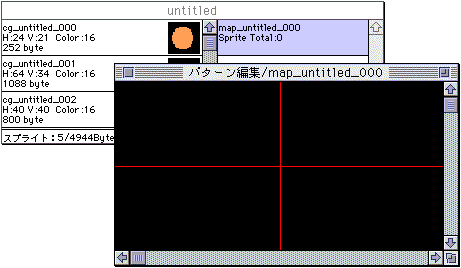
- If you double-click a pattern item on the main window, the pattern edit window will be called in the same way.
- By dragging the icon on the sprite list of the main window onto the pattern edit window, the sprite is registered in the pattern.
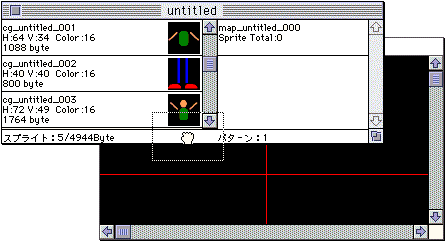
- Sprites registered in the pattern can be changed by clicking and dragging on the pattern edit window.
If multiple sprites are placed at the clicked position, the one with the highest priority will be selected.- To move multiple sprites while maintaining their positional relationship, drag around the target sprite and select the sprite.
If you want to select additional sprites individually, hold down the SHIFT key and click the sprites.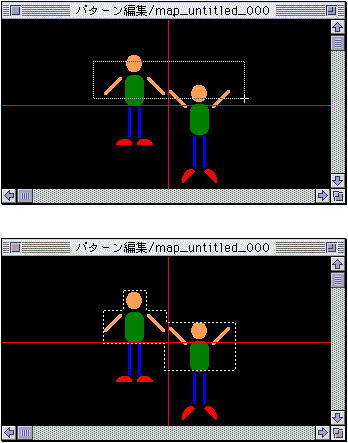
- If you want to reflect the positional relationship of the sprites registered in the import window as it is in the pattern, select multiple sprites by clicking while holding down the SHIFT key on the import window, copy them, and then paste them in the pattern edit window.
In this case, the upper left corner of the rectangular area that surrounds the entire selected sprite is registered in the pattern as offset coordinates (0, 0).
Align as necessary.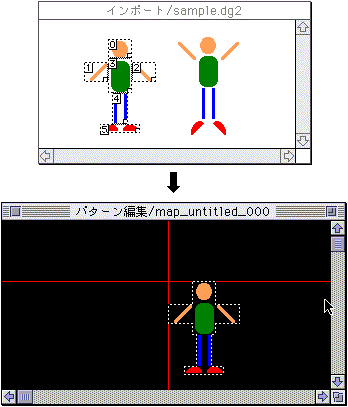
■ Change of rotation center point
- By default, sprites registered in the pattern have a center point set in the middle of the sprite.
If it is a sprite that specifies rotation and you need to change the center point, double-click the target sprite on the pattern information window to call the center setting dialog.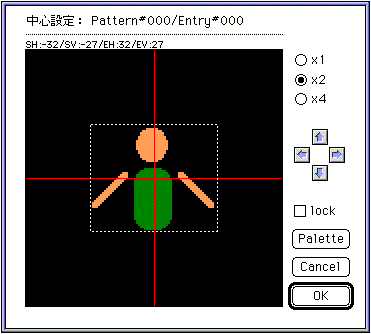
- To change the center point, drag the displayed sprite part or use the arrow button.
The meanings of the displayed coordinate values are as follows.- SH: Relative value from the center H coordinate to the start H coordinate
- SV: Relative value from the center V coordinate to the start V coordinate
- EH: Relative value from the center H coordinate to the end H coordinate
- EV: Relative value from the center V coordinate to the end V coordinate
- Also, by checking "lock", the angle will not be increased or decreased due to the subsequent rotation operation.
Use the "Palette" button to change the palette information assigned to the corresponding sprite.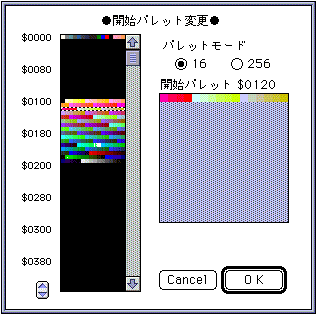
- You can also change the center of rotation and palette by double-clicking the sprite list on the main window. In this case, the changes will affect all patterns using the target sprite.
■ Pattern rotation
- To rotate the pattern data, select the sprite to be rotated on the pattern window, and then hold down the control key.
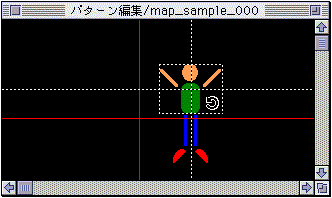
- By dragging in the selected area in this state, the sprite will rotate.
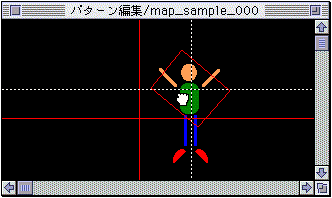
- Rotation with multiple sprites selected is based on one of the center points of the selected sprites.
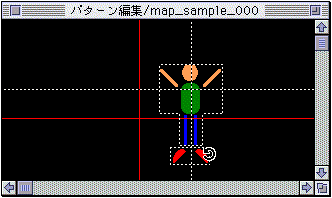
- If you want to change the center of rotation, hold down the control key and click the center sprite.
This will switch to the center point of the clicked sprite.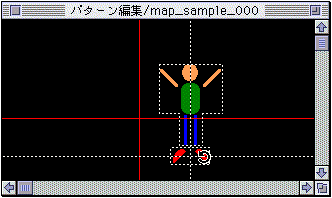
- Rotate multiple sprites by dragging within the selected area in the same way as rotating a single sprite.
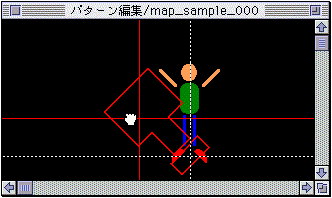
- * Please check the display of the result due to rotation on the target. On the Macintosh side, only the pseudo display clipped in the rotation result area is performed.
■ Pattern inversion
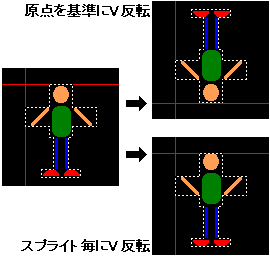
- Select the sprite to be flipped on the pattern window and select "H flip" or "V flip" from the option menu. There are the following two types of standards for inversion.
- "Based on origin" also changes the sprite placement coordinates based on the origin of the pattern.
- "For each sprite" simply inverts the sprite while keeping the sprite placement coordinates.
■ Change of priority
- Sprites registered in the pattern will have the same registration order as the display priority, and those registered later will have higher priority.
To change this, follow the steps below.- Select "Pattern Information" from the window menu to open the pattern information window.
Click and drag the target sprite on the pattern information window to change the registration order.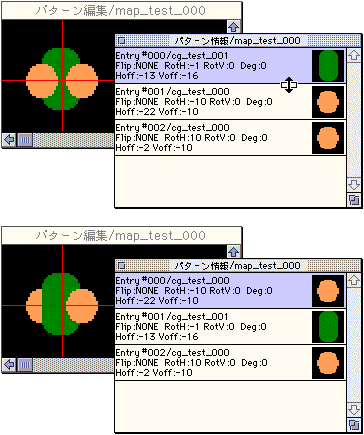
■ Copy pattern
- To copy in pattern units, select the pattern item on the main window and copy and paste.
To copy a part of the placement information in the pattern, copy the target sprites together on the pattern edit window, call the target pattern to the current, and then paste. ■ Movement of pattern origin
- Place the mouse cursor on the origin or H or V line on the pattern edit window and drag.
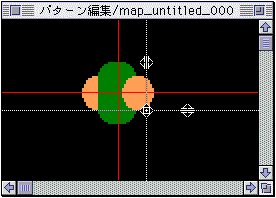
- You can also change it by entering a numerical value in "Preferences" of the file menu.
- * Origin movement is an auxiliary function for pattern editing work.
Therefore, the edited data itself does not change by moving the origin. ■ BG settings
- Select "BG ..." from the file menu to load the graphic data for the background.
Then the BG setting dialog is displayed.
To change the display position, drag the reduced image on the dialog.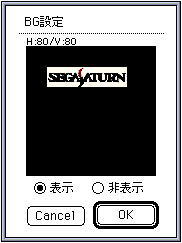
- If you select "View", it will always be displayed at the specified position in the pattern edit window.
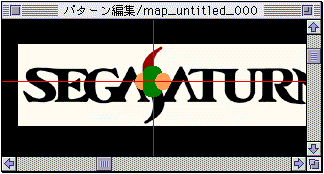
- These settings can be changed at any time by selecting "BG Settings" from the option menu.
- * BG display is an auxiliary function for pattern editing work.
Therefore, the output data itself does not change by changing the settings. ■ Monitor settings
- Select "Monitor Settings ..." from the option menu to display the setting dialog.
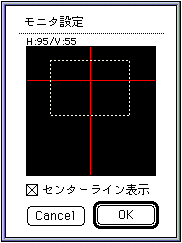
- Set the display position by dragging within the frame of the displayed monitor area.
Also, by checking "Center line display", the center line indicating the origin of the pattern will be displayed on the target side.- * This function does not work when the target is not connected.
■ Animation setting
- Select "Anime Settings" from the window menu to display the setting window.
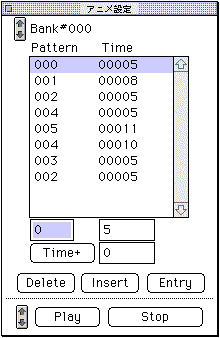
- Arrow button 1 (bank number specified):
- Specify the bank number to be edited.
- Pattern list:
- Sets the clicked list item in the input data area below.
Also, the clicked pattern is displayed on the target. - Time +:
- Depending on the content of the input item next to the button, the animation playback speed will be accelerated / decelerated as a whole. Also, when the Time + button is pressed, the currently specified value is reflected in the display time of the registration pattern.
- Entry:
- If the list item is selected, if it is not selected at that position, the input data is registered in the list as additional treatment.
- Insert: Insert:
- Inserts the entered data at the position of the selected list item.
- Delete:
- Deletes the data at the position of the selected list item.
- Arrow button 2 (designate pattern step):
- Moves the selection in the pattern list.
The selected pattern after moving is displayed on the target. - Play: Play:
- Run the animation.
- Stop: Stop:
- Stop the animation. (If you click another item, it will also be forcibly stopped)
- * This function does not work when the target is not connected.
▲ Back | ■
★ Graphic Tools Guide ★ SpriteEditor User's Manual
Copyright SEGA ENTERPRISES, LTD ,. 1997