MOVIE TOOLS GUIDECinepak for SEGA Saturn
BackForward
Cinepak for SEGA Saturn

2. Production of Cinepak movie


The process of incorporating the original audio, video and graphic material into the SEGA SATURN format depends on the original source material and the final format. The starting position of the process, the number of steps, the tools you need, etc. all depend on the equipment you have and what you want to do. This chapter provides information to help you decide which method is best for you.
2.1 Process overview

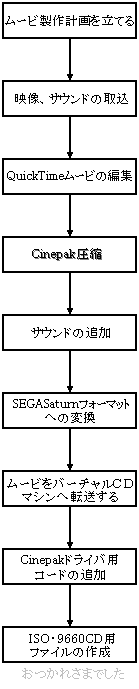
The following figure shows the general process procedure. The actual procedure depends on what you are doing.

Figure 2.1 Cinepak movie production procedure
-Determining frame size, frame rate, sound-Transfer rate from CD

-From VCRs, laser discs, cameras-QuickTime animations, PICT files-CG, animation files, etc.-Capture video and sound and convert them to QuickTime animation
-Use the QuickTime tool-Edit the sequence and length-Add effects to the movie if necessary-Add and edit the soundtrack-If you want to change the sound rate, cut and save the edited sound
・ Set Quality, Key Frame and other necessary items ・ Compress with Cinepak
・ Add sound if necessary
-Use MovieToSaturn_J to compress Cinepak for QuickTime movie
Convert to Sega Saturn movie
-If available, transfer to a virtual CD machine via LAN-Convert files between Mac and PC if necessary
-Add Cinepak play and add using the Cinepak library-Add sample programs as needed
-Create a CD image file with a virtual CD

2.2 Movie production plan

In order to create a Cinepak movie and use it in a game application, it is necessary to plan in advance what kind of movie to make.
The SEGA SATURN CD-ROM transfers data at 300KB / S in double speed mode. Therefore, the movie you create must be below that transfer rate.

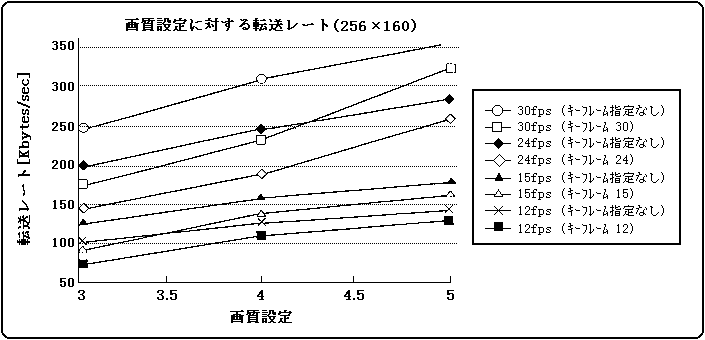
Figure 2.2 shows a graph with a frame size of 320 x 224 pixels, and Figure 2.3 shows a graph of a natural image movie with no sound and Cinepak compression. As you can see from these figures, the compression ratio gets worse as the image quality increases, and the data transfer rate increases. The actual movie adds sound to this, so the following equation is satisfied.

Sampling frequency x A x B + image transfer rate <300KB / S …… (Equation 2.1)
A: For 8bit PCM, A = 1 A = 2 for 16bit PCM B: If monaural, B = 1 B = 2 for stereo

Please refer to the figure for the image transfer rate. However, the actual compression rate will differ depending on the content of the movie, so roughly determine the frame size, frame rate, and sound with reference to these figures, try compressing the movie to be used, and set the transfer rate in the image quality setting. It would be better to adjust.

Figure 2.2 Transfer rate for image quality setting (320 x 224)
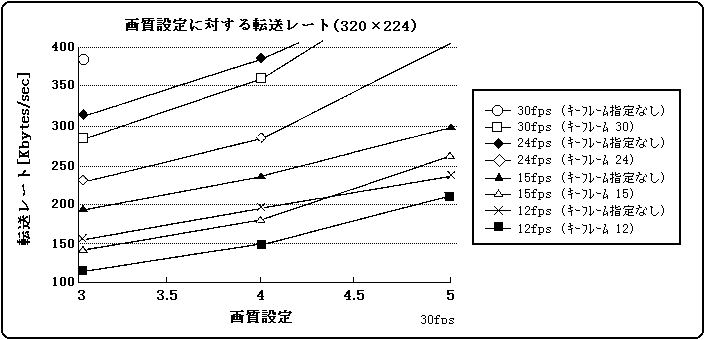
Figure 2.3 Transfer rate for image quality settings (256 x 160)
● Frame rate by display color
Cinepak-compressed movies are created in 16M colors (24-bit colors). When decoding, this movie is converted to 16 bits / pixel (MSB is transparent bit, RGB is 5 bits each) and expanded when playing in 32K color, and 32 bits / pixel (32 bits / pixel) when playing in 16M color. The upper 1 byte is for transparent bits, and RGB is expanded with 8 bits each). In other words, there is no problem as long as the compression ratio of the movie is the same (the movie data is the same) and the image transfer rate satisfies the above-mentioned (Equation 2.1) regardless of which one is used for playback.
However, when playing back in 16M colors, there is twice as much data as in 32K colors, and it is necessary to devise a transfer to VRAM, so it is necessary to lower the frame rate than in the case of 32K colors.
The frame rate depending on the display color varies depending on the content of the movie, but please refer to the following values.

  1. 32K color, 320 x 224 size 24-30fps
    24fps or less is appropriate to ensure image quality

  2. 16M color, 320 × 224 size 15-18fps

<reference>
About 16M color reproduction
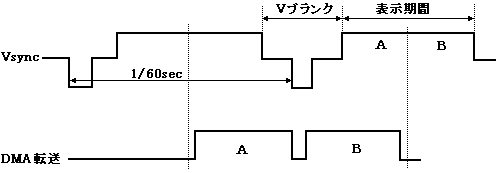
When playing back in 16M colors using the scroll surface of VDP2, once the 1-frame data is expanded in the work RAM, it is transferred to the VRAM using the DMA of the SCU. The transfer to VRAM transfers the data in the upper half while the TV scan line is in the lower half area, as shown in Figure 2.4. Then transfer the data in the lower half while the scan line is in the upper half area. In other words, VRAM is rewritten while being chased by the scanning line of the TV. These processes need to be completed within the 1Vsync period, and are transferred at high speed using SUC's DMA so that they cannot catch up with the scanning lines. Figure 2.5 shows the timing of data transfer to VRAM.

Figure 2.4 Image of data transfer to VRAM
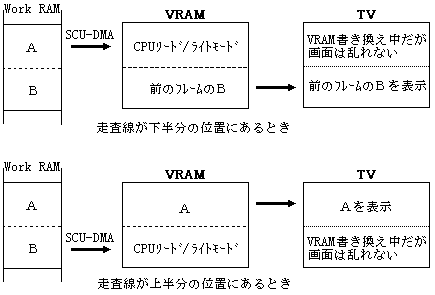
Figure 2.5 Image of data transfer to VRAM
2.3 Capturing video and sound

To create a Cinepak movie, you need a QuickTime movie file for the source material. In order to transfer the source material to QuickTime, there are innumerable combinations such as procedures and device configurations, but please refer to the following method as an example.

● Import from video source
If you want to capture footage into a QuickTime file, enter the material (VCR, camera, laser disc, etc.) into your QuickTime application via a Macintosh video capture board.
For the best image quality, capture the video as uncompressed as possible. To capture uncompressed, use the VCR's control board to capture frame by frame. To import in real time without compression, you can use a high-speed hard disk (DiskArray type), or you can import to RAM and then write to the hard disk. For the operation method, refer to the manual of the device to be used.

● Import from Macintosh graphics source
If you have a still image (PICT format) in Macintosh file format
Create a QuickTime file using the MovieConverter utility.

● Import from digital materials other than Macintosh
Use the DeBabelizer utility program to convert non-Macintosh (workstation and other PC machine graphic data) files to QuickTime format.

● Capture sound
Record in AIFF format via the Macintosh sound board. For digital sounds such as DAT, use a commercially available waveform editor to record the hard disk, and then resample to the target sampling frequency.

2.4 Editing QuickTime movies

At this point, edit the story, sequence, and soundtrack, and apply effects and filters as needed. For the editing tool of QuickTime movie, use "Adobe Premiere" of Adobe System. Also, as for the filter, the filter in the Plug-ins of "Adobe Photo Shop" of Adobe System can also be used in Premiere, so please try it. For details, refer to the manual of each software.

● About the division of the movie
The SEGA SATURN format Cinepak movie consists of the movie header and movie data (called video + sound, sample data) as shown in Figure 2.6. This header contains information about the entire movie and sample information. The sample information is the information for each frame of the video and the information for each interleaved sound, and 16 bytes are required for each sample. The header size of the movie can be calculated by the following formula.

H = (L × F + 4L-1) × 16 + 80 …… (Equation 2.2)
H: Header size [byte]
L: Length of movie [seconds]
F: Frame rate [fps]

For example, if you create a 10-minute movie with 30fps and sound, the header size will be about 320KB.
Since the header must always exist in memory during movie playback, if you create a long movie, the movie's header will become large, which will occupy the work RAM area of SEGA SATURN. Also, if the header is large, it will take time to read from the CD-ROM, and the start of playback of the movie will be delayed. To avoid these problems, split the movie and perform continuous playback. The Cinepak library allows you to seamlessly play the split movies continuously by registering the next movie to play.

Figure 2.6 Cinepak for SEGA SATURN movie file format
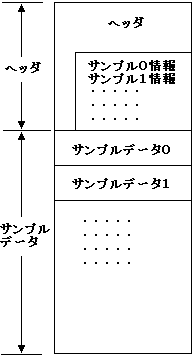
 Overall information about the movie and sample tapes and details of each sample
 Offset of each sample data,
Sample data size, display time information
 Sound data is always included in sample data 0
Contains 1/2 second

● When changing the sampling frequency of sound
Sounds typically handled by QuickTime editing tools are 44.1KHz, 22.254KHz, and 11.127KHz. On the other hand, SEGA SATURN can reproduce sampling frequencies below 44.1KHz. If you want to use sounds other than 44.1KHz, 22.254KHz, 11.127KHz, use a QuickTime editing tool like Adobe Premiere to cut the original soundtrack, save it to an AIFF file, and use the Sound Utility. Downsample the AIFF file. Then, after compressing the movie with Cinepak, add the downsampled sound to the movie.

2.5 Cinepak compression

Use a compression utility such as Apple's Movie Converter to compress the movie with Cinepak in the compressor pop-up menu. Select Color as the color depth (some compression utilities have millions of colors). Please note that Grayscale cannot be used. After that, set the required values such as quality and frame rate and compress with Cinepak.
It doesn't matter what the audio block is set to.

2.6 Addition of sound

If you want to add sound after creating a video-only Cinepak movie, use Movie Player. Open the AIFF format sound file in MoviePlayer (it will be a movie with no video). Similarly, open the video-only Cinepak movie and paste the sound-only movie. Be sure to hold down the Option key when pasting.

operation
  1. Open the video-only Cinepak movie and the sound file you want to add with MoviePlayer
  2. Select All the sound-only movie and then copy it
  3. After selecting the Cinepak movie with only the video, paste while holding down the Option key.
  4. Save after confirming playback

2.7 Conversion to SEGA SATURN format

Use MovieToSEGASATURN_J to convert an edited Cinepak compressed file to a SEGA SATURN format movie file.

operation
  1. Copy MovieToSaturn_J to a suitable folder on your Macintosh.
  2. Start MovieToSaturn_J, select the file you want to convert and click the "Open" button (Fig. 2.7).
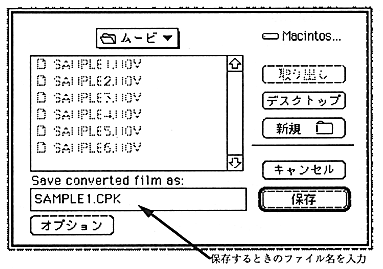
  3. When the save dialog opens, enter the file name for saving (Fig. 2.8). By default, ".CPK" is added to the end of the source file name.
  4. Click the "Save" button to start the conversion.
  5. It will end automatically when the conversion is complete.

Figure 2.7 MovieToSaturn_J Movie selection dialog
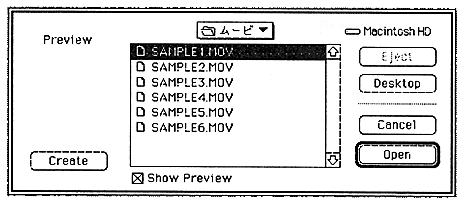
Figure 2.8 MovieToSaturn_J Move Save Dialog
You can also convert by dragging and dropping. Drop the Cinepak file you want to convert onto the MovieToSaturn_J icon to start the conversion. In this case, if the extension is ".MOV", rewrite it to ".CPK", otherwise add ".CPK" to the original file name.

2.8 Transfer Cinepak movie to DOS

Use Apple File Exchange to convert the movie to a DOS file. Also, if LAN service is available, it will be transferred to a PC / AT compatible machine for virtual CD via the network.

2.9 Add code for Cinepak driver

Create an application using the Cinepak library. For more information on the Cinepak library, see "Chapter 4 Cinepak Library". Also, if necessary, refer to the source code of the sample program provided with the Cinepak library.

2.10 Creating a file for CD-ROM

Create a CD image with a virtual CD and check the playback contents.


BackForward
MOVIE TOOLS GUIDECinepak for SEGA Saturn
Copyright SEGA ENTERPRISES, LTD ,. 1997