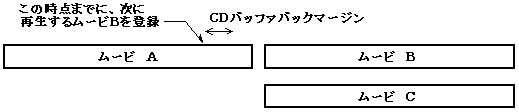
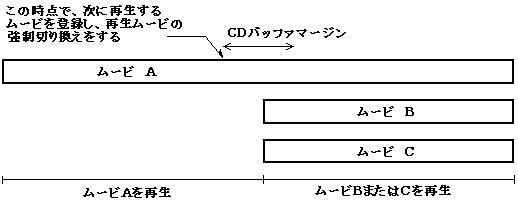
caution- For seamless branching movies, the sound content (sampling rate, number of quantization bits, number of channels) and frame rate should be the same.
- Place the seamless branching movie on the CD-ROM as close as possible. Also, arrange them in the order of branching from the inside to the outside of the CD-ROM.
- Seamless branching is not available for multi-motion playback.
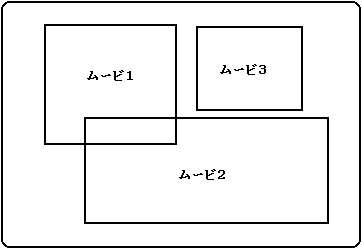
3.2 Multi-motion playback Cinepak for SEGASATURN can play up to 4 movies on the screen at the same time. Figure 3.4 shows an image of mulch playback. Performing a multi-move A move is performed in the same procedure as when creating a normal single move. Sounds can be independently for each movie and played at the same time (or only the sound of the user-selected movie can be played and the volume of the other sounds can be turned down), or only one sound can be played. You can also play other videos with just the image. Multi-movi has the following forms.- Channel interleave multiple movies on a CD and play them from the CD at the same time
- Play the movie on the memory and the movie on the CD at the same time
- Load multiple videos into memory and play them at the same time
Figure 3.4 Playback of multi-motion
 caution- When channel interleaving multiple moves on a CD, specify the exact data rate (bit rate) of each move and interleave (for details, refer to the manual of the virtual CD).
- If you want to have sound for each of multiple videos, reduce the sampling rate (about 11KHz).
- Seamless branching is not possible from multi-motion playback.
3.3 Super Impose You can use a chroma key shot to superimpose your subject on another still image or background of the movie. Superimpose is achieved by making the specific color specified by MovieToSaturn_J transparent when decoding it on SEGA SATURN. Therefore, the background you want to make transparent must be a single color. The super-impose movie can be used with or without sound. Figure 3.5 Super Impose
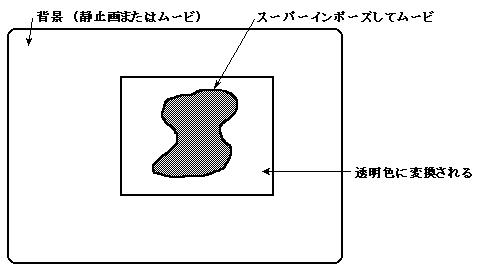 To superimpose, use the Adobe Premiere Color Replacement filter or Transparency Settings. (Refer to the Adobe Premiere manual for details on "Color replacement" and "Transparency setting".) ● For "Color Replacement" filter- For example, in the case of a blue-back shot movie, select the background blue as the target color. Next, set the color to be replaced to "Red = 0, Green = 65536, Blue = 0" and replace it with pure green. Use the similarity slider or repeat replacements to make the background a pure green color. At this time, be careful that the color to be replaced is not included in the subject to be super-imposed. If so, it can be pure red, white, black, etc. instead of green.
- When the color replacement is complete, the movie is Cinepak compressed.
- Next, when converting with MovieToSaturn_J, click the "Options" button, select chroma key processing, and then enter the color value to be keyed out (Fig. 3.6). If the replaced color is pure green, enter "Red = 0, Green = 255, Blue = 0" and then convert to SEGA SATURN format.
● In the case of "transparency setting" A blue-backed movie is placed on the super track of the construction window, and a blue-colored still image that is keyed out is placed on track A. After selecting the Super Track movie, open the transparency setting dialog and select the chroma with the key type. Use the similarity slider to adjust the background color so that it is clean and transparent. Now you can make a movie with A track as a matte.
After that, execute steps 2 and 3 in the same way as "Color replacement". Figure 3.6 MovieToSaturn_J Options Dialog
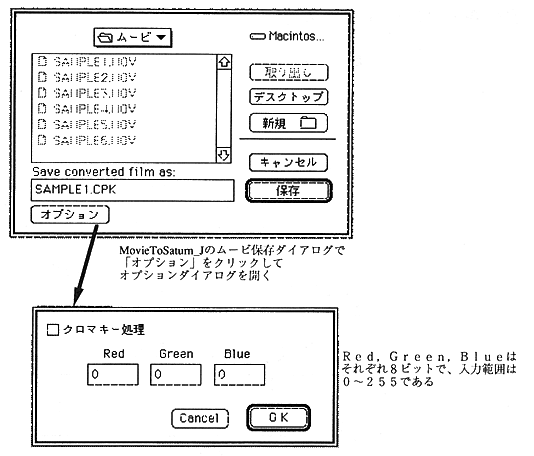 caution
 | The super-imposed movie cannot be keyed out cleanly because the edge part changes to the specified color due to Cinepak compression. In this case, use the CPK_SetKeyOutRange function to adjust the range of colors to key out. |
|---|
3.4 Keyframe Pose ● About keyframes There are two types of movie compression: spatial compression, which compresses data within a frame, and time compression, which compresses the part that does not change from the previous frame by not having data. Generally, a frame that is time-compressed is called a difference frame, while a frame that is only spatially compressed is called a key frame.
Cinepak is a compressor that supports difference frames, and you can specify keyframes during compression to perform time compression. For example, if you say "keyframes every 30 frames", it will consist of 1 keyframe and 29 diff frames (actually, the Cinepak compressor may insert keyframes automatically, so it's actually Keyframes are not always inserted every 30 frames). The difference frame has a problem of a kind of blocking phenomenon that the time-compressed part looks like a block. If you compress without specifying a key frame, only each frame space compression will be performed and there will be no difference frame. Figure 3.7 Relationship between keyframes and difference frames
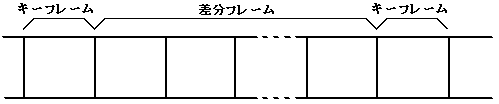 ● Keyframe pose The pause function (CPK_Pause function) in the Cinepak library provides parameters for specifying immediate poses and keyframe poses. If you specify a keyframe pose, it will not pause until the keyframe appears after the pause is activated. Therefore, if you specify a keyframe every second, you will have to wait up to 1 second after starting the pause. This is to ensure synchronization with the sound when unpaused. To avoid this, do not specify keyframes during Cinepak compression, or shorten the keyframe spacing. 3.5 Still image playback By loading the movie data into the memory in advance and expanding the specified frame (CPK_DecordeFrame function), the movie frame data can be used as a still image. Figure 3.8 Flow of still image playback
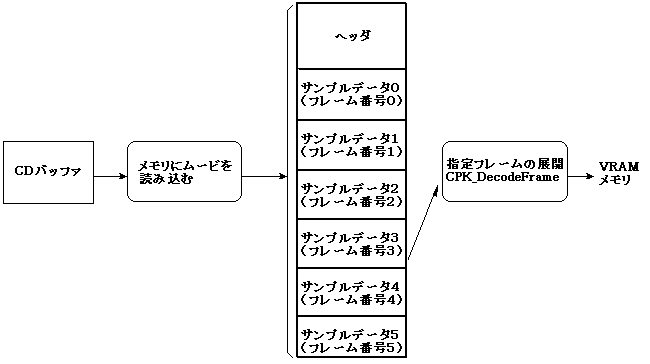 caution- Compress the still image movie with Cinepak without adding sound.
- The frame rate for Cinepak compression is arbitrary (meaningless).
- Never specify keyframes when compressing Cinepak.
- All still image videos must be loaded in memory. For a full-screen frame size, a 10-20 frame movie file is a good choice.
▲ Back | Forward ▼
 ★ MOVIE TOOLS GUIDE ★ Cinepak for SEGA Saturn ★ MOVIE TOOLS GUIDE ★ Cinepak for SEGA Saturn
Copyright SEGA ENTERPRISES, LTD ,. 1997 |