Please be careful when converting data.
Scaling and Viewing Problems
If you convert a hierarchy whose model has a scale value other than (1,1,1) and use the Viewer → saturnViewer command, the results will be different on the CartDev + DevSaturn environment and Softimage.
Saturn uses classical conversion, because Softimage uses non-classical conversion by default. The order of movement, rotation, scaling, etc. is different between Saturn and Softimage.
- Non-classical
S model XS parent XR model XT model XR parent XT parent - classical
S model XR model XT model XS parent XR parent XT parent
There is no easy way to convert from non-classical to classical. When converting from Softimage to Saturn format, the object will appear in place on Saturn and create a new local transformation to be calculated correctly.
There are two options for this problem.
- Use the Effect-> Freeze-> Scaling command of the Model module before conversion.
- Select Preferences → Classic Scaling command and model with Classical transformations.
Generate Geometry (.mdl)
The Generate Geometry option can output shape, material information, etc. in SGL format.
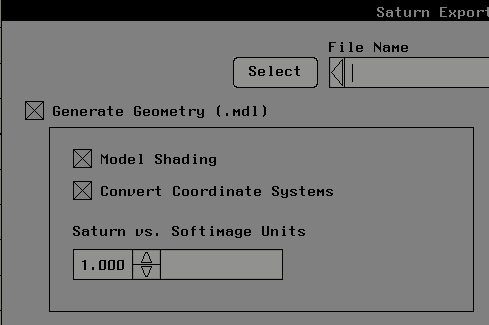
Model Shading
The Model Shading option allows you to add SGL shading information to the transformed model.
Convert Coordinate Systems
Turn this option on to convert from Softimage's coordinate system to Satan's coordinate system. Inverts the Y and Z values for the next item.
- Vertex coordinate values
- Polygon normal
- Object position and rotation value
Saturn vs. Softimage Units
You can scale when converting from Softimage to SGL format.
Generate Texture (.txr)
The Genrate Texture option can output texture information in SGL format.
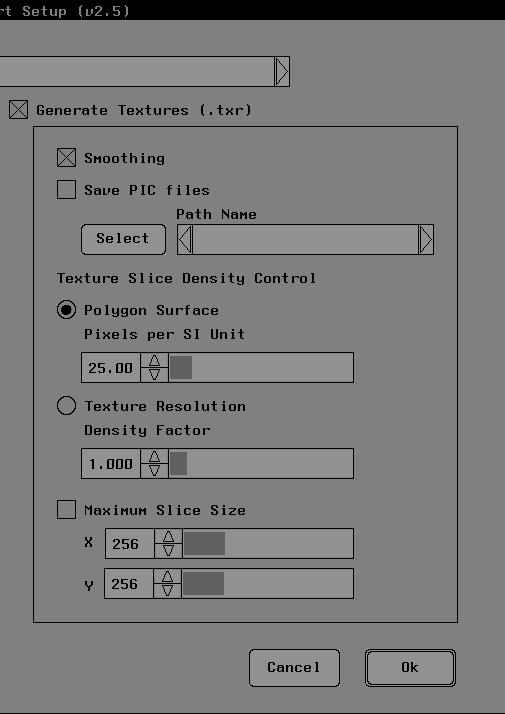
Smoothing
The Smoothing option controls color smoothing as the texture is resampled. When this option is selected, the bilinear interference method is used to improve the quality of the texture slices created, but if this option is not selected, the color of the closest pixel of the original texture is used. increase.
(Note) If you use this option, the smoothing process may create colors that were not used in the original texture.
Save PIC files
You can save the texture-sliced .pic file in the specified directory.
Texture Slice Density Control
Polygon Surface
When slicing a texture, the size of the texture is calculated from the size of the polygon. The advantage of this technique is that the density of the sliced texture is uniform with respect to the size of the model. The size of the texture is independent of the original texture data. The default value is set to 25 pixels per Softimage unit.
Texture Resolution
The UV texture coordinates of the texture-mapped polygons determine the size of the texture to slice. The size of the sliced texture depends on the resolution of the original texture. The Density Factor (default 1.0) determines the resolution of the texture.
Maximum Slice Size
Texture You can set the maximum value of X and Y of the texture to be sliced.
(By default, both X and Y are 256 pixels)
Generate Animation (.mtn)
The Generate Animation option can output animation information as text data. (Not compliant with SGL)
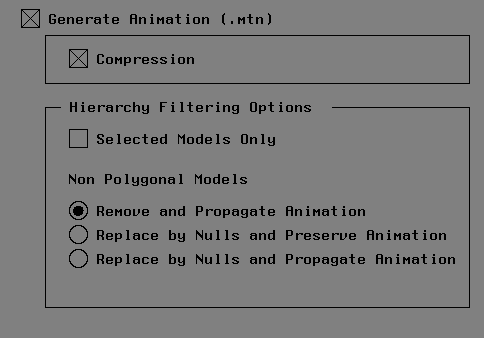
Compression
Compresses animation data. If the number does not change, the data is omitted.
Hierarchy Filtering Options (not available in v2.2)
Selected Models Only
Only the selected model.
Non Polygonal Models (for models other than polygon meshes)
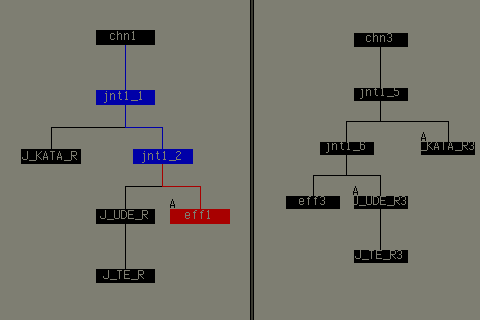
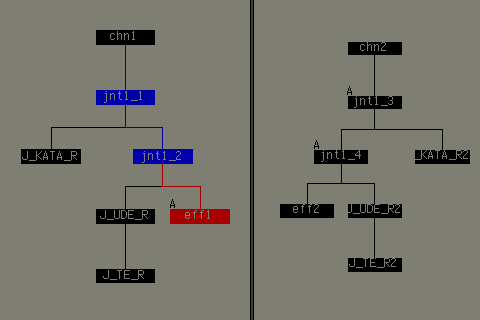
In this example, the skeleton effector has a keyframe animation set.
Remove and Propagate Animation
Removes non-polygon mesh models (eg skeletons) from the hierarchy and propagates the animation to another model.
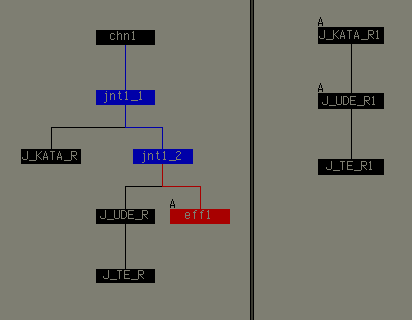
Replace by Nulls and Preserve Animation
Replace the non-polygon mesh model with Null to preserve the animation. The models named jnt1_3 and jnt1_4 on the right side of the figure are animated. These two are Null.
Replace by Nulls and Propagate Animation
Replaces non-polygon mesh models with Null to propagate the animation to another model.