
Q: What features does the Softimage3D Extreme package include?
Q: How to convert DXF files to Softimage3D format?
Q: How to render a Softimage 3D scene from the command line?
Q: Is there a Photoshop Plugin for Softimage image files?
Q: How to convert TIFF or PICT format files to Softimage image files?
Q: How do I view Softimage image files with standalone commands?
Q: How do I get a list of keyboard shortcuts?
Q: How to save the model only?
Q: How to input the eps file created by Adobe Illustrator?
Q: How to cancel smooth shading of polygon model?
A: You can convert DXF files to Softimage3D file format using a standalone command called dxf2soft. The command is under $ SI_LOCATION / 3D / bin.
Example of use)
When converting a file called sample.dxf to Softimage3D format.
dxf2soft -G -M -o DXF_OUT -R /usr/softimage35/3D/rsrc sample.dxf
-G option: Combine meshes in the same hierarchy into one group.
-M option: Converts only shape data.
-o option: Specify the database name of the output destination. SI_DBDIR must be set in the environment. The database name must be registered in DatabaseDir.rsrc.
-R option: Specify the Softimage3D resource path. This is the same location as the directory specified when starting Softimage3D.
A: You can render Softimage 3D scenes with soft -R.
Example of use)
When rendering a scene called test-scene.1-0.dsc in a database called V35_DB.
soft -d V35_DB -l test-scene.1-0 -R
A: The PhotoShop plug-in is registered on Softimage's FTP site. Both are freeware.
For Macintosh
ftp://ftp.softimage.co.uk/pub/donated/utils/photoshop-plugin1.02b.bin
For windows
ftp://ftp.softimage.co.uk/pub/donated/utils/photo113.zip
A: You can convert TIFF and PICT files using a standalone command called imgconv.
Example of use)
When converting image.pict to image.pic. Specify the converted file format with -format.
imgconv image.pict image.pic -format SOFT
A: Standalone commands for displaying Softimage image files include display and showpic . When displayed in showpic, press the A key to display the Alpha channel. (R key = Red channel, G key = Green channel, B key = Blue channel)
Example of use)
When displaying image.1.pic.
showpic image.1.picWhen displaying from image.1.pic to image.30.pic continuously.
showpic image -s 1 30 1
A: Select Info → Supra Keys to see a list of keyboard shortcuts.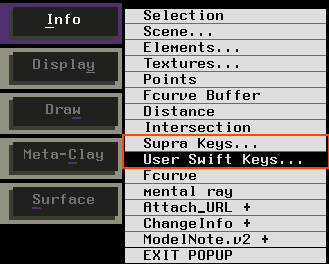
A: You can save the model selected in Save → Selected Models to the database.
A: You can input an eps file into Softimage3D by selecting Get → Eps2Soft from the MODEL module.
A: You can remove smooth shading by selecting a polygon model, opening a dialog box with Info → Selection, and specifying Faceted.