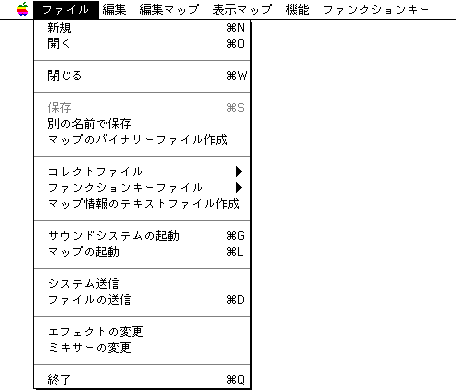
The File menu is a menu for opening and saving sound area maps.
New
Select when creating a new map.
open
Select to open a map that has already been created.
close
Select to close the map you are editing. The simulator will not end.
keep
Select to save the map you are editing.
Save as a different name
Select to save the map you are editing with a different name.
Creating a binary file of the map
Create a Binary format (data actually sent to the target) of the file currently being edited
When you choose.
Collect file
It manages the input / output of data files in the MIDI file converter list and collect file list. This menu has the following three submenus.
Open collect file
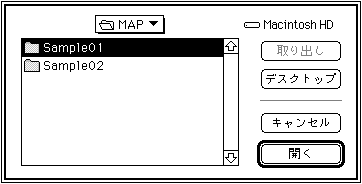
Open the collect list file. Select Open Collect List to open the following dialog box. The existing collect list file is displayed. A collect list is a collection of multiple file names to save you the trouble of selecting a file each time. Used when converting a standard MIDI file and when creating a sequence bank. The file opened here contains both of the above two types of collect lists separately.
Save collect file
Saves the currently active collect list file.
Save as a different name
Save the currently active collect list file with a different name.
Function key file
It manages the input / output of the function key configuration file. This menu has the following three submenus.
Open function key file
Recalls the saved function key setup settings.
Save function key file
Saves all the settings set in the function key setup.
Save as a different name
Save the settings set in the function key setup with a different name. Function keys are saved in the map file. Use these menus if you want to use the key settings in another map file.
Creating a text file of map information
Switches the map in which the currently selected map becomes active. From now on, the sound driver will use this map as the current map (currently valid map). At this time, if the file information of the map is set to be automatically sent, the file data will be automatically transferred.
Sound system boot
Start the sound system based on the data such as the sound driver that has been transferred in advance.
System send
Use this when the target board is somehow disabled and needs to be reset. It saves you the trouble of sending the system and restarting Sound Simulator. If you want to send a customized driver, put the driver file with the file name "SDDRV.TSK" in the same folder as the sound simulator and execute this menu.
Send file
Transfers the currently selected file data onto the target. Click the file you want to transfer and it will be highlighted in black to indicate that it has been selected. If you want to specify multiple files at the same time, hold down the shift key and click the next file. Click the selected file again to deselect it and return to its normal white display.
Change effect
When there are multiple DSP programs on the current map, the DSP programs are switched. Click the DSP program you want to switch to and it will be highlighted in black to indicate that it has been selected.
Mixer changes
Changes the mixer number 0 of the bank file selected from multiple bank files existing on the current map. If there are multiple mixers in the bank file, you need to change from the sound simulator described later to change to a mixer other than 0.