★ Graphic Tools Guide ★ SEGA CONVERTER User's Manual
▲ Back | Forward ▼
SEGA CONVERTER User's Manual 2. menu
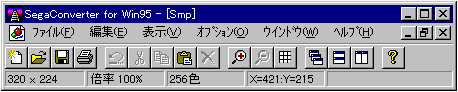
■ "File" menu
- Performs file management such as file input / output. In addition, processing such as printing and ending is also executed in this menu.
- ◆ New
- Create a new file.
- 【dialog box】
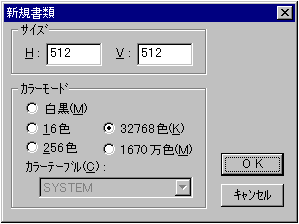
- Size Enter the width (H) and height (V) of the new file.
- Color Mode Select the color mode for the new file. If you select 16-color or 256-color mode, also select the color table to use for the file.
- ◆ Open
- Open a file that has already been saved.
- ◆ Close
- Close the file you are currently working on.
- ◆ Save
- Save the file you are currently working on.
- ◆ Save as
- Name the file you are currently working on and save it as a separate file.
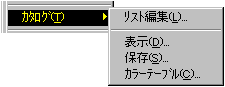
- ◆ Catalog
- Prepares and executes batch processing for multiple files.
Details of catalog function - ◆ Page settings
- Set the page layout when printing.
- ◆ Printing
- Prints the file you are currently working on.
- ◆ 1-4
- 4 files are displayed in order from the recently opened or saved file.
- ◆ End
- Exit "Sega Converter".
■ "Edit" menu
- Edit images such as cut and paste. You can also set the work environment for using "Sega Converter" here.
- ◆ Undo
- Cancels the previous operation. Please note that some functions cannot be undone.
- ◆ Cut out
- Crop the image in the selection. The cropped image is saved on the clipboard.
- ◆ Copy
- Copies the image of the selection. The copied image is saved on the clipboard.
- ◆ Paste
- Paste the image stored in the clipboard on top of the image you are currently working on. The image immediately after pasting is in a movable state (floating state).
- ◆ Delete
- Erases the selected image.
- ◆ Select all
- Select the entire image.
- ◆ Deselect
- Deselect it. The floating image is determined to the current position.
- ◆ Clear clipboard
- Delete the image on the clipboard.
- ◆ Properties
- Set the environment for various editing work.
- 【grid】
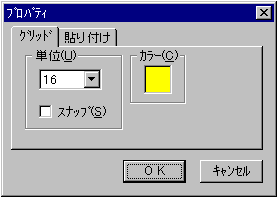
- Select the size of the unit grid.
- It will operate in the specified grid size unit during the snap selection operation.
- Specifies the color of the color grid.
- 【pasting】
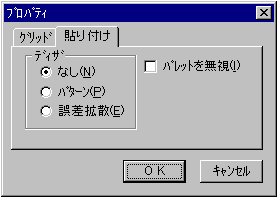
- Select the compositing method when the number of colors used in the image to which the dither is pasted is greater than the number of colors used in the clipboard image.
- Ignore Palette Ignores the color table and pastes only the bitmap information.
■ "View" menu
- Change the display magnification of the image you are working on, and decide whether to show or hide the grid.
- ◆ Magnification
- Enlarges the image you are currently working on at the specified magnification.
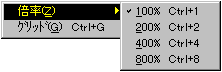
- ◆ Grid
- Shows / hides the grid of the specified unit on the image currently being worked on.
The unit of the grid is specified by "Edit"-> "Properties".
■ "Option" menu
- Performs mutual conversion of color modes and various filtering processes.
- ◆ Black and white ◆ 16 colors ◆ 256 colors ◆ Approximately 32000 colors ◆ Approximately 16.7 million colors
- Converts the image you are currently working on to the specified number of color modes. If the specified number of colors is less than the number of colors before conversion, you can specify the conversion method.
- 【dialog】
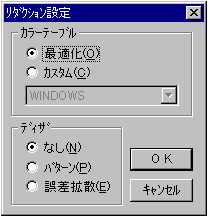
- [Color table]
If the conversion color mode is 16 or 256 colors, specify the color table to use for the conversion.- Optimization Searches the color information of the image you are currently working on and generates a color table optimized for the specified number of colors.
- Custom Uses an already registered color table.
- [Dither]
Select a dithering method to display the missing colors due to the conversion.- None No dithering is performed.
- Pattern Pattern dither processing is performed.
- Error diffusion Dither processing is performed using the error diffusion method.
- ◆ Color table
- If the image you are currently working on has 16 or 256 colors, the color table used for that image is displayed.
- 【dialog】
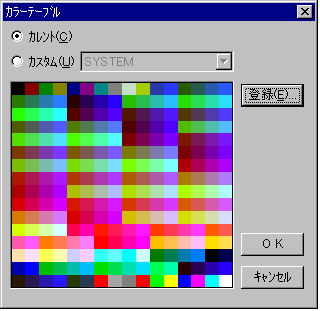
- Current Displays the color table used for the image you are currently working on.
- Custom Displays the already registered color table.
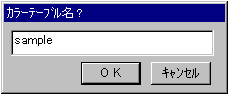
- Registration Registers a new color table that is displayed.
- ◆ Filter
- This is a plug-in function that applies various filters to the image you are currently working on.
- ◆ Expression
- This is a plug-in function that changes the expression method of the image you are currently working on.
- ◆ Effect
- This is a plug-in function that applies effects to the image you are currently working on.
- ◆ Other
- This is a plug-in function that performs other processing.
The plug-in function affects the inside of the range if it is selected, and affects the entire image if it is not selected.
■ "Window" menu
- Shows the name of the window currently displayed on the screen. It also determines how to align each window.
- ◆ Overlapping
- The windows are overlaid from the upper left.
- ◆ Displayed side by side
- All windows are displayed side by side.
- ◆ Displayed side by side
- All windows are displayed side by side.
- ◆ Alignment of icons
- Aligns all minimized (iconified) windows.
- ◆ Close all
- Close all windows.
■ "Help" menu
- Displays a help file that explains how to use "Sega Converter". It also displays the information of "Sega Converter".
- ◆ Table of contents
- Displays the table of contents of the help file.
- ◆ Version information
- Information such as the version of "Sega Converter" is displayed.
■ Catalog function
- The catalog function is a function that can be said to be a feature of "Sega Converter", which is not often seen in GUI applications, which continuously executes various processes for multiple files.
Currently, it supports mutual conversion of file formats and color reduction functions.- ◆ List editing
- Edit such as adding / deleting the file list that is the target of the catalog function.
- 【dialog】
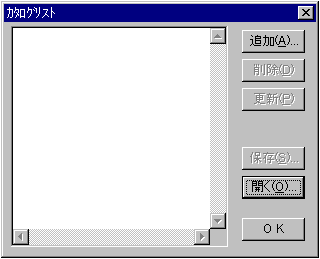
- Add Adds a file to the file list.
- Delete Deletes the selected file in the file list from the list.
- Update Updates the file list based on the latest file information. When there is an operation such as moving a file externally, it plays an auxiliary role to prevent inconsistency in the subsequent catalog function.
- Save Saves the current file list.
- Open Reads the already saved file list. The current file list changes to the loaded list.
- ◆ Display
- The files registered in the list are opened in order.
- 【dialog】
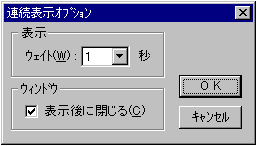
- Wait Select the interval (seconds) before opening the next file.
- Close after display If checked, the window will close automatically after opening the file.
- ◆ Save
- Saves the file registered in the list with a different name.
- 【dialog】
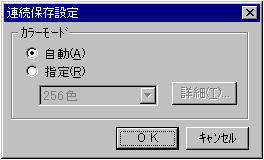
- Automatically sets the color mode of the file to be saved automatically. Basically, it doesn't change the color mode.
- Specify Specify the color mode of the file to be saved.
- If you specify the advanced color mode, you can set more detailed conditions. The settings are the same as when setting the color mode in the "Options" menu.
- ◆ Color table
- Generates an optimized color table from all the files registered in the list. The generated color table will be registered automatically.
- 【dialog】
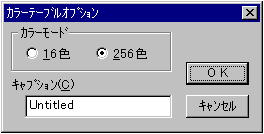
- Color mode Select the number of colors in the color table to generate.
- Enter the registered name of the caption color table.
▲ Back | Forward ▼
★ Graphic Tools Guide ★ SEGA CONVERTER User's Manual
Copyright SEGA ENTERPRISES, LTD ,. 1997