 ★ Graphic Tools Guide ★ MAP / SCREEN Editor User's Manual
▲ Back | Forward ▼
MAP / SCREEN Editor User's Manual
■ Character editing
- Character data is newly created by pasting from the image window. Copy & Paste is also possible from other applications.
Specify the range with the rectangle selection tool / selection tool, and perform various edits by copying & anp; Paste, changing the layout, or combining with the image menu.
As an optional function, you can copy the array of the selected range to the Map window as it is. - ● Attribute settings
- Attributes are auxiliary information assigned to each character. Basically, you can set arbitrary data for processing on the program side for the map.
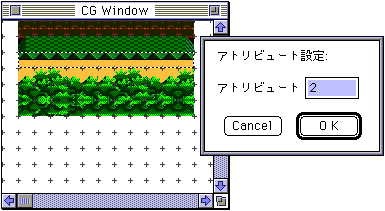
- Select "Attributes" from the image menu to open the attribute setting dialog. The value entered here is set as attribute data for the characters in the specified range.
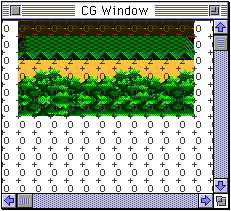
- To check the set attribute data, check the attribute section of the option menu "View".
- ● Display palette
- Since the CG data itself does not have palette information, the characters on the CG window are displayed in the color of the temporarily set palette.
When registering characters assuming the use of multiple palettes, if the set palette interferes with editing work, select "Display Palette" from the image menu and change the display palette. Please give me.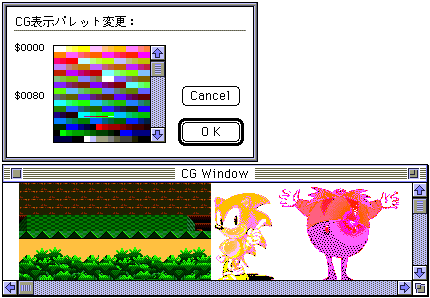
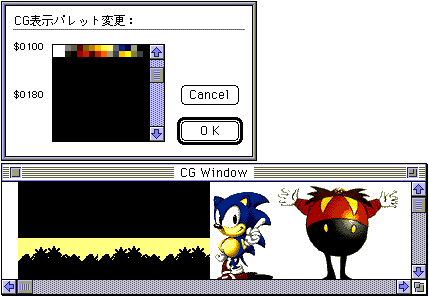
- Palette changes always affect the entire character area of the CG window. In addition, the palette information specified at that time is added to the data registered in the map.
- ● Sort
- Search for duplicate characters with some conditions and combine them into one character. First, specify the sort range on the CG window and select "Sort" from the image menu to display the dialog for specifying the sort conditions.
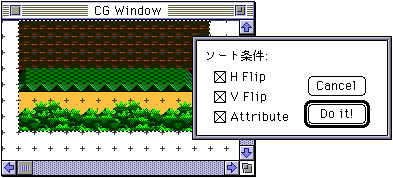
- Set the required conditions and perform the sort.
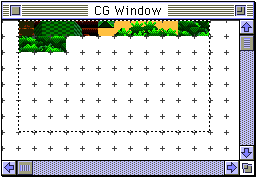
- Information about each character moved by sorting is reflected in the map data.
- ● Offset
- Moves the registered position (character number) of all registered characters backward by the specified number of characters. Select "Offset" from the image menu to display the dialog for entering the offset value.
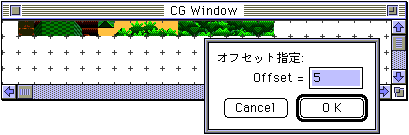
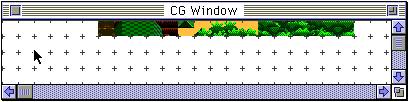
- Information about each character moved by offset specification is reflected in the map data.
- ● Usage check
- From the registered characters, the unused map data is replaced with the 0th character. After this work, if you need to prefill the unused character area, etc., use "Sort" together.
▲ Back | Forward ▼
★ Graphic Tools Guide ★ MAP / SCREEN Editor User's Manual
Copyright SEGA ENTERPRISES, LTD., 1997