 ★ Graphic Tools Guide ★ 3DME User's Manual
▲ Back | Forward ▼
General-purpose 3D modeling tool user's manual 3. 3. Sample creation tutorial
Here, we will create a conical model and set the texture.
■ Make a model
- 1) Create a new file
- If you select the "File"-> "New" command, you will be asked for the number of vertical and horizontal blocks. Here, select the size of the map you need. For the time being, substitute 16 vertically and horizontally here.
By default, one block is 128 dots in size. You can also change the settings when saving data or in the property item.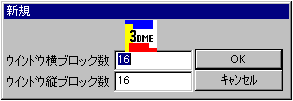
- 2) Window adjustment
- The Top view window opens. Now use "Scale" to adjust so that all blocks fit in the window.
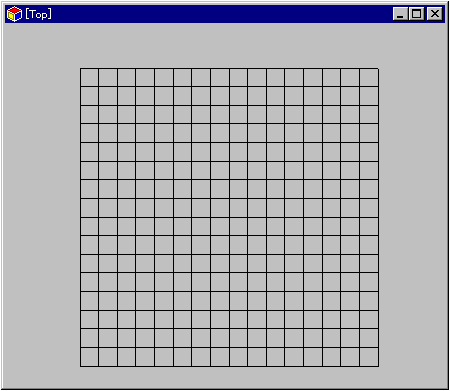
- 3) Polygon creation
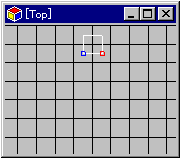
- With the vertex mode in place, select the Add Polygon command. A square polygon is displayed in the center of the screen. After that, select the lower two vertices with the selection command (set the menu mode to "vertex selection mode").
- 4) Polygon extension
- Extend this polygon toward the bottom of the screen. When you select the "Move" command, the "XYZ" parameter input window will appear at the bottom of the menu. So substitute 128 for Y and press the "PP +" button.
Then, one polygon of the same size will be created below the previous polygon (because the coordinate system is + X to the right and + Y to the bottom). This will create a polygon with a total of 2 squares lined up vertically.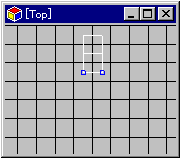
- 5) Three-dimensional polygon
- Of the two polygons lined up, use the "Select" command to select the bottom two vertices. Click the left part of the part marked [Top] in the upper left of the window to switch to the viewpoint viewed from the Right direction.
Select "Move Command". Substitute Y = 128, Z = 128 in the "XYZ" parameter input window and press the "Enter" button. Now the second polygon is tilted 45 degrees.
Switch to the Perspective view and check the state of the model.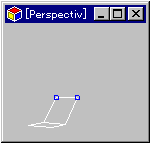
- <Troubleshooting so far>
- I can't select vertices with the "Select" command!
- Are you in polygon mode? In polygon mode, you cannot select by vertex. Click the top left part of the menu window to switch to vertex mode.
- I accidentally created an extra polygon!
- Switch to polygon mode, select the extra polygons and delete them with the "Dell" command.
- 6) Transformation into a fan-shaped polygon
- Please switch the screen to Top view again. Select the three vertices on the right side of the two polygons arranged vertically. Then move -128 dots in the X direction and overlap with the three vertices on the left.
Then select the Rotate command. A parameter input window opens at the bottom of the menu, similar to the "Move" command. If you click the "text" checkbox here, a red crosshair will appear in the map window. This is the center of rotation. Drag this to align it with the bottom of the three vertices. After matching, enter 30 in the parameter and press the "OK" button. Then, in the Top view, a fan-shaped polygon with an angle of 30 degrees is created.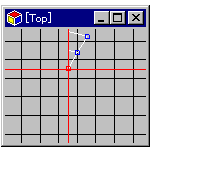
- 7) Transition to conical polygons
- If you click the "PP +" button from the state of 6), fan-shaped polygons will be formed one after another. Once you have made a round and become a cone, use the Select command to select the apex in the center of the cone.
Actually, this vertex is in a state where several vertices are placed on top of each other (try to enlarge after selecting), so combine them into one.
Execute the "Join Vertex" command. The central vertices are now in one. In the same way, combine the remaining 2 vertices x 2 (the start and end vertices of the cone) into one vertex.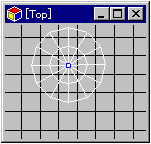
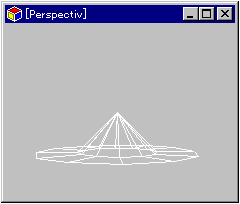
- This completes the conical polygon. Check the model from various angles on the Perspective screen. Also, on the Texture screen, you can see a model like a black mountain. If you can't see anything, the polygon is flipped over.
- 8) Save data
- Save the data here once. Select "File"-> "Save" to open the file save window. Save it in any directory in * .pof format.
- <Troubleshooting so far>
- The "Rotate" command creates a random circle!
- Is the center off? Try to align the red crosshair with the center of rotation as much as possible.
- When I performed "vertex connection", it became a strange shape!
- Have you selected a vertex other than the center? Select and join only the vertices gathered in the center.
- I'm worried if I was able to follow the instructions!
- The finished figure is shown below.
▲ Back | Forward ▼
★ Graphic Tools Guide ★ 3DME User's Manual
Copyright SEGA ENTERPRISES, LTD ,. 1997