Graphic Tools Guide3DME User's Manual
BackForward
General-purpose 3D modeling tool User's manual / 3. Sample creation

■ Paste the texture

1) Open the texture list
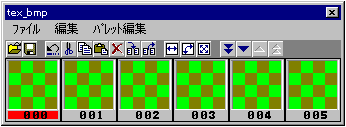
Select "Window"-> "Texture List" to open the Texture List window.

[Texture window]

2) Load the texture
Click the right mouse button on the "000" window of the texture list window. A window called "Texture Settings" will open.
After deciding the texture settings (color count, bank, etc.) you want to load in that window, click the "Load File" button. Then, the file viewer window will open, so specify any BMP format file.
The maximum read size is 256x256 dots. 16 BMP colors, 256 colors, 32000 colors, and 16 million colors (reduced to 32000 colors) can be used. You can register up to 1000 sheets.
Here, let's read the sample data KUSA.BMP.

3) Save the texture data
Saves all texture data. Select "File"-> "Save" in the texture list window.
There are the following types of save formats.

format Quality
* .STT For 3dme.EXE
* .TXR For embedding SGL program (text data)
* .BIN For SGL program embedding (binary data)
* .HED Header for texture data transfer

Supplementary foot 1
The TXR or BIN and HED files are required for inclusion in the SGL (see sample for details).

Supplement 2
When reloading the model data, the texture data is also required, so load it together with the model data.

4) Paste the texture data on the model
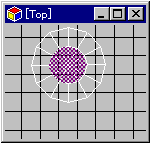
Switch the window displaying the model to the Top viewpoint. Then select the raised center of the cone in polygon mode (see figure below).

[Selection of cone]

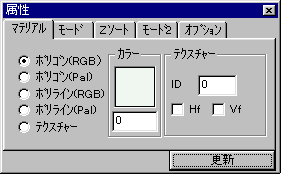
Select Window> Attributes. This will open the "Attributes" window. You can make various settings for the polygon selected in this window.

[Attribute window]

If you want to set a texture, check the "Texture" checkbox in the "Material" item. Then specify "0" for "Texture ID". Click the "Update" button to reflect the contents in the model. Check if the texture is attached from the TexCheck or Perspective viewpoint.
Other settings can be made for polygons in this window. Please try various results to see what the result will be.

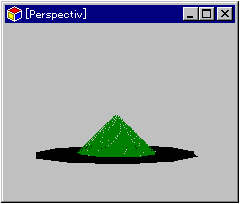
[Example of texture mapping]

The black part specifies "Color 0" of "Polygon (Pal)" in the "Material" item. This makes it transparent in the program.

BackForward
Graphic Tools Guide3DME User's Manual
Copyright SEGA ENTERPRISES, LTD ,. 1997