SOUND ManualTone Editor User's Manual /
BackForward
Tone Editor User's Manual

8. About the function of each menu


● Apple menu

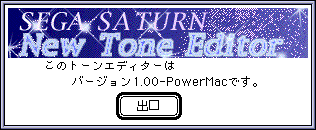
◆ About SatTone Ed
The following dialog is displayed. Currently only the version number and boot environment are displayed, but each information is communicated to the user using this window.

● File menu

◆ New project
Deploy a new project. At this time, one voice and one layer are automatically generated.

◆ Open a project
Open an existing project file. In addition to the project file, you can also open the bank file and the bank file of YAMAHA Tone Editor. All files other than the opened project file will be expanded as a project file with one bank.

◆ Close
Close the project data. If there is a change in a new project or data, a save dialog will open asking if you want to save it.

◆ Save
Save the project file. If the project is not a new project, overwrite it and save it.

◆ Save as
Be sure to open the save dialog and ask the user for the file name before saving.

◆ Saving the sent file
Save the data you want to send to the target board. This send file automatically selects and saves only the required data from the data contained in the project.

◆ Export bank file
Export the bank file. This function is used as a set with reading the bank file described later, and exchanges data between project files.

◆ Reading bank file
Read the bank file. When reading, the shared waveform and Mixer, Velocity, PEG, and PLFO are checked for sharing.

◆ Text output of bank information
Each data of the bank is put together in a tree structure and output in text format. This feature is not supported in version 0.99.

◆ End
Exit the application. If the project file is open and the changes have not been saved, the Save menu will be executed.

● Edit menu

The edit menu is for editing the bank, and for all voices and layer windows in the foreground except for the "Waveform replacement" menu.

◆ Cancellation
Cancels the contents of the edit menu that was made immediately before for voices and layers.

◆ New
Inserts a new voice or layer at the selected location (at the top if more than one is selected).
The number to be inserted depends on the initial number set in the initial setting item.
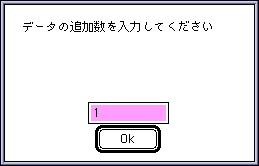
However, if the initial number is 0, the following dialog will appear and ask for the number of additional data. Up to 31 pieces.
If you select this menu while holding down the Shift key, the selected voice or layer range will be ignored and will always be added at the end.

◆ Delete
Deletes the selected data or data group. When you do this menu, the "Copy" menu is automatically executed.

◆ Copy
Copies the selected data or the contents of the data group to the work. This menu cannot be canceled.

◆ Pasting
Pastes the copied data into the selected area. If the selected data is less than the data to be pasted, new data will be added by the amount less. There is a selection area where nothing is done if there are many.

◆ Insert
Inserts the data at the selected location. If multiple data are selected, they will be inserted after the first selected data.

◆ Erase data
Initializes the selected data. Please note that if you do this menu for voices, the included layers will be initialized to one.

◆ Addition of bank
Create a new bank. This menu adds a new bank at the very end regardless of where you select it. In the case of banks, a special menu is prepared to prevent accidents.

◆ Delete bank
Delete banks that you no longer need. Waveforms that are no longer in use are also deleted.

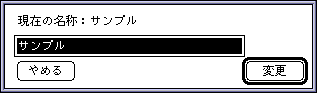
◆ Change bank name
Rename the bank. The bank name becomes the default file name when saving the bank file and the outgoing file. We accept up to 31 single-byte characters. However, the window can display up to 18 half-width characters and up to 9 full-width characters.

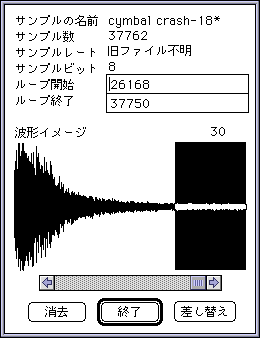
◆ Waveform replacement
Replaces and deletes the waveforms currently registered in the project. Please note that all layers containing the waveform being operated on will be affected.
When you select this menu, the following dialog will be displayed.

<About each button>

◆ Erase
Erases the currently displayed waveform.

◆ Replacement
Replaces the currently displayed waveform with another one. All layers with shared waveforms will be replaced with new waveforms.

◆ End
Close the dialog. If there is a change in the loop, the result of the change will be saved.

◆ Scroll bar
Select the waveform to be operated. If there are changes to the loop, save the changes and select a different waveform.

◆ Start of loop, end of loop
Change the loop point. It is registered by operating the end button or scroll bar.

● Setting menu

◆ Mixer menu
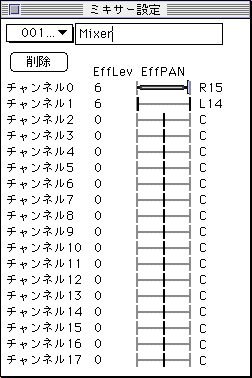
Select this menu to display the mixer settings dialog.

◆ Eff Lev
Set the effect level. Click the number of the channel you want to set and the edit text will be displayed. Enter the setting value.

◆ EffPAN
Set the effect pan. If you click the text part of the level image of the channel you want to set, a slider for setting will appear, so set it.

<About each button>
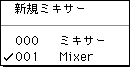
Number pop-up (pop-up menu on the upper left) Change the mixer table during editing and build a new mixer table.
Click this pop-up menu to display the following menu.
A check mark will be added to the mixer table being edited.

◆ Delete button
Delete the mixer table you are editing. The last mixer table cannot be deleted.

◆ Edit text
Rename it. The changed name will be reflected in the number pop-up menu.

◆ Velocity menu
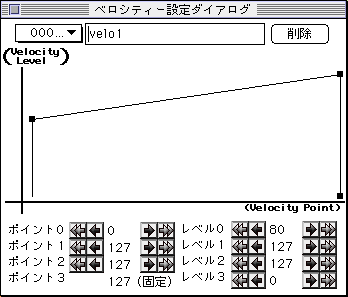
Select this menu to display the following Velocity settings dialog.

About each point and level
Velocity can be set by changing the level of 4 points in total. (However, the level of point 3 can be changed, but the position is fixed at 127.) Each point and level can be set. (gain) Click the (Decrease) button or the numeric text to display the edit text, from which you can enter and set serial numbers. Regarding points

Point 0 <Point 1 <Point 2

There are restrictions on the size.
The level can be set arbitrarily from 0 to 127 at any point. Each velocity point can also be operated by dragging the ■ part in the graph.

<About each button>
The other buttons are exactly the same as those described in the Mixer section.

important point
Velocity and PEG and PLFO settings described below are referenced from each layer.

When deleted, each reference number of the layer does not change, so the assignment data will be shifted for the layer to which the number after the deleted number is assigned. (If the last number is assigned, it will be in the unset state.) The user should be aware of this and press the delete button.
When deleting, a warning alert is displayed.
● PEG menu

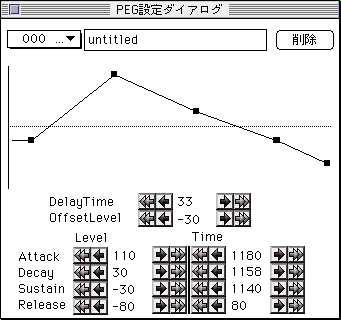
Select this menu to display the PEG settings dialog.

<About the graph>
You cannot change the parameters by dragging the ■ of the PEG image in this dialog.

In the graph, the set total time is divided by the number of dots from the start to the release start point, and each point is determined from the time per dot. Therefore, if you move one parameter, other points will move or the rate of increase will not be proportional, which is a visual contradiction, but this is not a bug.

The usage of the button is exactly the same as that of velocity, so I will omit it.
● PLFO menu

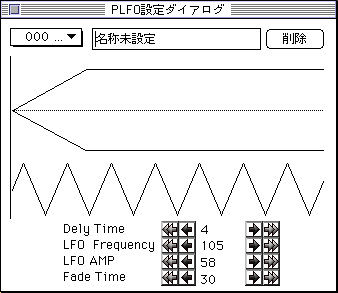
When this menu is selected, the following PLFO setting dialog is displayed.

The usage of the button is exactly the same as the velocity, so I will omit it.

◆ Master Volume
Send a direct command for the master volume.
It has no effect on the tone editor data.

● Function menu

Functions that are not directly related to the output data of the tone editor are summarized.

◆ Target check
It detects the target board on the SCSI chain and collects bank information if the driver is running on the target board.

When this menu is executed, the following two dialogs will be displayed depending on the target status.
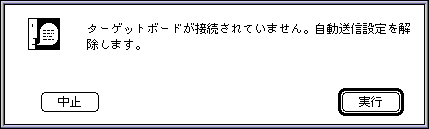
If the target board was not connected

If you press the execute button, communication with the target board will be cut off. You cannot test the pronunciation, but you can edit the data.
If it is the stop button, the application will be closed.
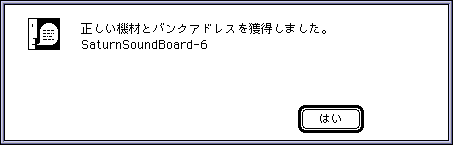
When the target board is connected and the driver is running.

Communication with the target board is not possible unless this message is displayed.

In addition to this, if the target board is connected but the bank cannot be taken correctly

"The driver may not have been started."

An error is displayed. The work itself is uninterrupted.

If you change the bank information with a tool such as SATURN SndSimF, be sure to execute this menu.

◆ Update data size
Forces the calculation of bank, voice, and layer window size items.
With the initial settings described later

< "I will update the size myself"

If you check, it will be available.

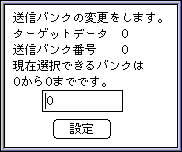
◆ Send bank settings
Set the outbound bank on the target. This content is displayed in the Bank No item of the project window.

 Target data
 The number of the bank to be changed.
 Send bank number
 The currently set transmission bank number.
 Currently selectable banks
 Banks that can be sent with the bank settings currently on the target board.
 Set value
 New setting value.

 caution
Depending on the settings of the previously saved bank, a number larger than the selectable bank may be assigned. This is not a bug.

◆ Send bank data.
Sends all tone data of the specified bank to the bank on the set target.

◆ Parameter automatic transmission setting
If checked, only changed parameters will be sent in real time.

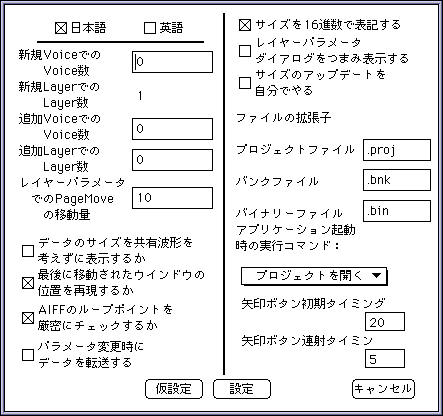
◆ Initial setting
Set the environment that can be changed.

<About each item>

◆ Japanese, English
Set the display language. It will be effective from the next launch.
(In 1.00, the English setting is incomplete and disabled.)

◆ Number of Voices in new Voice
Set the number of initial data when the "New" item of the edit menu is executed in the project window and voice window.
If it is 0, the number is asked to the user each time.

◆ Number of voices in additional voices
Number of Layers in Additional Layer Set the number of additional data when the "New" item of the edit menu is executed in the voice window and layer window.

◆ PageMove movement amount in layer parameters
The rod part of the slider or Large movement of the button Set the amount of movement for the button.

◆ Whether to display the data size without considering the shared waveform
Shows the size of each pure data for each window size item.
The resulting output file will differ significantly from the display size.
This check cannot be checked at the same time as some settings.
◆ Whether to reproduce the position of the last moved window
Saves the position of the window moved by the user as data. It works the same as a normal application. However, if you're working on a high-resolution monitor, the windows you've left behind may pop out of the screen when you move them to a low-resolution monitor.
If that happens, please uncheck this.

◆ Do you strictly check the AIFF loop point?
When loop points are set with multiple waveform editing tools, in rare cases multiple sets of loop points may be set. If this is checked, the loop point where the loop was first established when such data exists is judged to be the correct loop.

If there are two or more sets of loop points without checking, the loop information is discarded and the whole waveform is recognized as a loop point.

◆ Send data when changing parameters
Only the change data is sent in real time when the parameter is changed.
This check cannot be checked at the same time as some settings.

◆ Notify the size in hexadecimal
The size of each window is expressed in hexadecimal in the format of "0x ~".

◆ Knob the layer parameter dialog to display
Change the layer parameter dialog to a slider GUI.

◆ Update the size yourself
Manually update (recalculate) the size items of each window.
Recalculation of size items requires more CPU power as the total number of waveforms increases. If you don't send, you don't need to calculate the size. Check this item if the process is heavy and unavoidable. It will be dramatically faster.

This check cannot be checked at the same time as some settings.

◆ File extension
Set the extension of the output file. The maximum number of characters is 15 including. (Period). The extension has the highest priority for the file name. That is, if you set the extension to 15 characters, the name can be up to 16 characters. After that, the end of the name will be cut one character at a time.

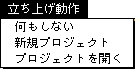
◆ Execution command when starting an application
Set the behavior (required Apple event "AppOpenEvwnt") when launching by directly clicking the tone editor. This menu consists of the following members:

◆ Do nothing
Do nothing

◆ New project
Open a project that has not been registered yet. It's the same as calling the new project menu.

◆ Open a project
Follow the procedure to open the project. It's the same as running the menu that opens the project.

◆ Arrow button initial timing
◆ Arrow button rapid fire timing
Set the first and second wait timings for the key.
Set in 1/60 second units. Due to processing, it will be slower than the actual time.

<About each button>

◆ Temporary setting
Enables the settings and finishes the initial settings without saving them in the initialization file. However, the language setting is invalid.

◆ Settings
Write to the initialization file Finishes the initialization.

◆ Cancel
Disables the changed settings and finishes the initial settings.

BackForward
SOUND ManualTone Editor User's Manual /
Copyright SEGA ENTERPRISES, LTD., 1997