 ★ Graphic Tools Guide ★ Sega Painter User's Manual /
■ | Advance ▼
Sega Painter User's Manual 1.First of all
■ Summary
- "Sega Painter" is an application that reads multiple image data saved in formats such as PICT and DGT2 and edits them as a general paint tool.
The edited data can be registered as an object and played as a simple animation.
You can also use the target box for real-time display on your home TV monitor. ■ Note
- "Sega Painter" requires about 4MB of memory at startup, but may require more "temporary memory" during operation. Make sure you have enough memory on your Macintosh before using it.
■ Restrictions
- "Sega Painter" supports the following Sega development targets.
- Saturn Target Model-S Graphics Box
- Saturn Cartridge Development System (commonly known as CartDev)
- For precautions when connecting, refer to the manual etc. attached to the target.
■ Startup screen
- If you start the application with the target box connected, the following screen will be displayed.
Select the target box you want to connect to and click OK.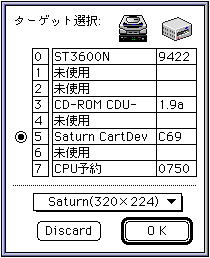
- You can change the size of the TV screen.
- Saturn (320 x 224): Displays in 320 dots x 224 dots.
- Saturn (352 x 224): Displays in 352 dots x 224 dots.
- Saturn (320 x 240): Displays in 320 dots x 240 dots.
- Saturn (352 x 240): Displays in 352 dots x 240 dots.
■ Operation screen
- Various windows are displayed in "Sega Painter".
- ● Document (drawing / editing) window
- Multiple displays are possible in a window for standard drawing and editing operations. The edits made to this window are saved as a document (file).
The document window has two layers according to the purpose of work, which are called the draw (paint) layer and the edit (edit) layer, respectively. The drawing layer draws according to a general paint tool. The edit layer specifies the object (pattern) registered in the animation. The individual layers can be switched while you work, and their edits are interrelated.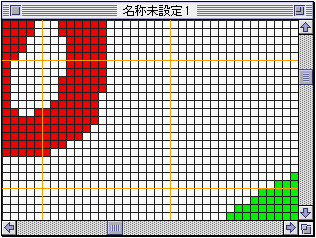
- ● Tool palette
- Determines the editing function for each window.
For details, refer to the document " 3. Tool Palette ".
- ● Monitor window
- This window is used to simulate the target monitor. The image of the foremost document window (current window) is displayed.
The animation will be displayed in this window.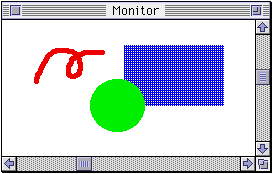
- ● Information window
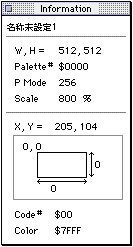
- The information of the current window is displayed.
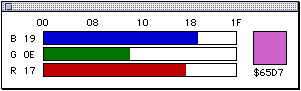
- ● Color picker window
- Displays the Sega color picker.
- ● Palette window
- The palette table in the current window is displayed. The palette code set in the foreground color is displayed in marquee (animated dotted frame).
See " Menu " for more information.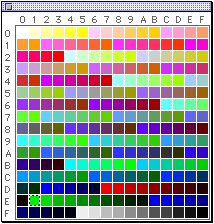
- ● Pattern window
- The currently set pattern is displayed. The currently selected pattern (current pattern) is displayed in marquee.
See " Menu " for more information.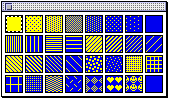
- ● Panel window
- Controls the animation.
See the document " 5. Animation " for more information.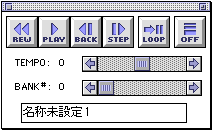
- ● Color edit window
- Edit the color.
For details, refer to the document " 4. Color Palette ".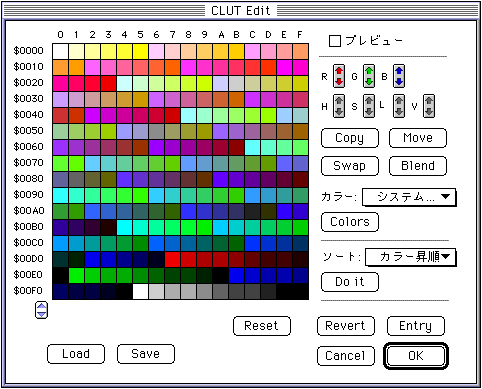
- ● Palette edit window
- Edits the palette of the selected document window.
For details, refer to the document " 4. Color Palette ".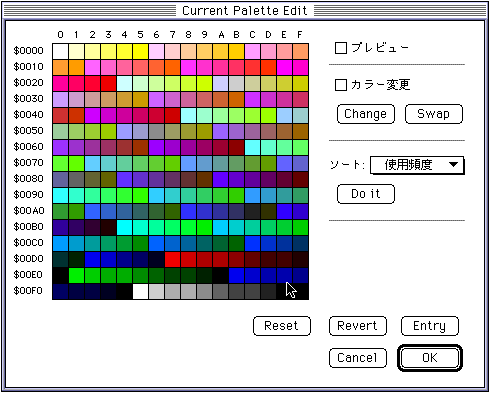
- ● Animation registration window
- Register the object to be played as a simple animation.
See the document " 5. Animation " for more information.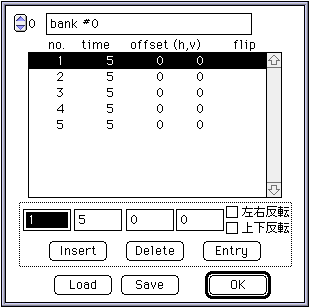
- ● Template
- This is a window with some functions of "Sega Painter" as buttons.
A brief description of the function is displayed when you hover over each button.
■ | Advance ▼
★ Graphic Tools Guide ★ Sega Painter User's Manual /
Copyright SEGA ENTERPRISES, LTD., 1997