HARDWARE ManualVDP2 User's ManualChapter 8 Window
BackForward
VDP2 User's Manual / Chapter 8 Window

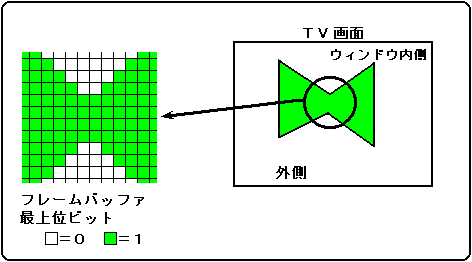
● Sprite window

The sprite window is obtained by specifying the value of the most significant bit of the data when the frame buffer data of the sprite is all palette data and the sprite type is 2 to 7. The area where the most significant bit is 1 is the inside, and the other areas are the outside. For information on sprite types, see "Sprite Types" in 9.1 Sprite Data. The sprite window is shown in Figure 8.5.

Figure 8.5 Sprite window

● Sprite control register

The sprite control register controls sprites. A write-only 16-bit register located at address 1800E0H. After turning on the power or resetting, the value will be cleared to 0, so be sure to set it.

SPCTL 1800E0H
 15
 14
 13
 12
 11
 Ten
 09 09
 08 08
 ---
 ---
 SPCCCS1
 SPCCCS0
 ---
 SPCCN2
 SPCCN1
 SPCCN0

 07 07
 06 06
 05 05
 04
 03 03
 02 02
 01 01
 00
 ---
 ---
 SPCLMD
 SPWINEN
 SPTYPE3
 SPTYPE2
 SPTYPE1
 SPTYPE0

Sprite color operation condition bit: Sprite color calculation condition bit
(SPCCCS1, SPCCCS0), bits 13, 12
See 9.2 Priority and Color Arithmetic.

Sprite color operation conditions Number bit: Sprite color calculation condition number bit
(SPCCN2 to SPCCN0), bits 10 to 8
See 9.2 Priority and Color Arithmetic.

Sprite color mode bit: Sprite color mode bit (SPCLMD) , bit 5
See 9.1 Sprite Data.

Sprite window enable bit : SW enable bit (SPWINEN), bit 4
Specifies whether to use the sprite window SW.

SPWINEN process
0 Do not use sprite windows
1 Use a sprite window

This bit is valid only when the sprite color mode is mode 0 and the sprite type is type 2-7.
When this bit is 1, the most significant bit in the sprite's framebuffer is used as the bit for the sprite window, so MSB shadows cannot be used. For details on shadows, refer to "14.1 Shadow Processing".

If you set the SPCLMD bit to 1, do not set this bit to 1.

Sprite type bits : Sprite type bits (SPTYPE3 to SPTYPE0), bits 3 to 0
See 9.1 Sprite Data.

● Window effective area for the screen

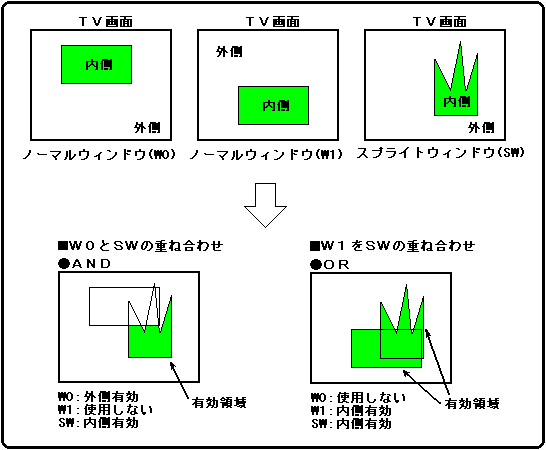
You can specify whether to use the normal window and sprite window for each scroll screen. For the window to be used, you can specify whether to enable the inner or outer area for each window, and perform color calculation and transparency processing on the enabled area. If you use multiple windows, you can choose how to overlay them from AND or OR logic.

Figure 8.6 shows the effective area when the normal window and the sprite window are superposed by AND or OR logic.

Figure 8.6 Window Effective Area


BackForward
HARDWARE ManualVDP2 User's ManualChapter 8 Window
Copyright SEGA ENTERPRISES, LTD., 1997