SGL User's ManualSOUND STRUCT
BackForward
SOUND STRUCT / 2. Make a song

2-2. Take the sound of the instrument you use

The only difference between the Saturn target when the power is turned on and the MIDI sound source is that the target does not have timbre data, and the rest can be considered to be almost the same.
Here, the Wave editor is used to acquire the sound handled by the target as a waveform.
The sound provided by the SEGA Sound Library is quite large in size, so in order to actually handle it in the game, work such as reducing the size is also required.
However, it's a good idea to use this library until you get some sound.

Now let's actually capture the sound.

This work is called sampling, and by using the Wave editor of Sega Sound Tool, the read sound can be output directly from the target.

Capture sounds in the following order.

1) Start Wave Editor
Start the Wave editor.

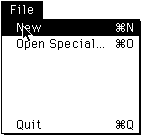
2) Create a new file
Select Create new file.

Figure 2-2 Creating a new file

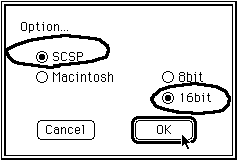
3) Target module settings
Set the sampling conditions from the target.
Select "SCSP" to make it sound from the target. Also, select "16 bit" to capture the sound. After making your selection, click “OK”.

Figure 2-3 Target module settings

4) Capture settings
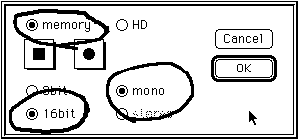
If the sound capture time is less than 10 seconds, select memory, and if it is longer than that, select HD.
As shown in the figure, "16 bit" can be handled, and only monaural can be used for importing, so select "mono". After making your selection, click “OK”.

Figure 2-4 Capture settings

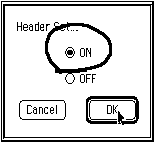
Figure 2-5 HD settings

5) Make it pronounce
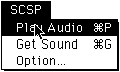
Select "Play Audio".

Figure 2-6 Selection of “Play Audio”

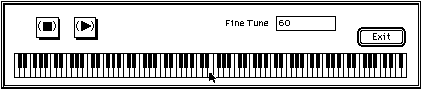
Then the keyboard screen will appear. On this screen, play the sampled waveform.
However, since the main work here is to edit the waveform, there is no change in volume regardless of whether you press the key lightly or strongly.
The volume is set in the Tone editor .

Figure 2-7 Keyboard screen

When you press the keyboard with the mouse, the target will make a sound.
Also, when you press the play button (▼), you will hear the basic key sounds. To stop, press the stop button (■).

6) Basic editing
Select, copy, and paste with the mouse in the same way as general word processing software, and execute from the edit menu.
The only difference is that in the case of paste and cut, there is a choice to overwrite the selected part or to fill the part to be cut, so the process is almost the same.

7) Loop
By applying a loop, the sound within the specified loop range can be repeated, so the size required for the waveform can be reduced.
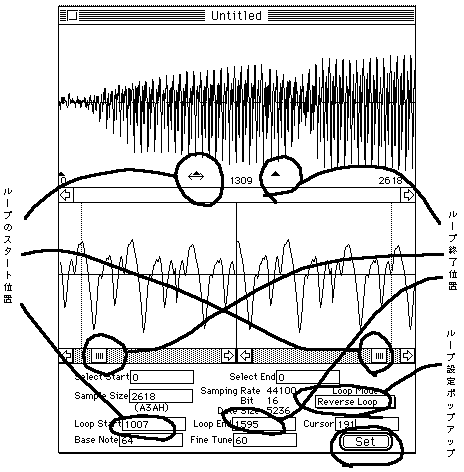
The figure below shows an example of loop setting. After setting, click “Set”.

Figure 2-8 Loop settings

If there is a clicking noise at the end, shift the position of the loop.
While checking the sound with the space key, move it little by little with the arrow on the scroll bar.
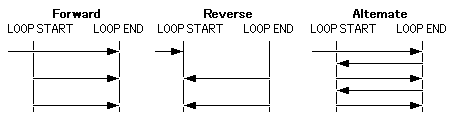
There are the following three types of loops.

Figure 2-9 Loop mode

8) Effect settings for waveforms
I think that there are some parts that you can't understand without trying various things, so I'll just give you a guide. All you have to do is change the number.

Table 2-1 Effect contents
Resample 11K-44.1K Change the number of samples
(If you lower it too much, the sound will not be smooth)
Pitch Shift 0-127 Larger is faster (standard is 60)
Size Shift Max FFFEh Resize (affects all parameters)
Scale 100% Volume adjustment
Filter
LPF (Low Pass Filter)
HPF (High Pass Filter)

500-16000Hz
32-2200Hz

Cut frequencies above the set value Cut frequencies below the set value
Compressor
Threshold
Compression Ratio

-90 ~ 0
1-90

The louder the volume, the lower the volume. The louder the volume, the lower the volume.
Noise Gate
Threshould
Release
Hold

-90 ~ 0
0-2000
0-2000

Time to fade out to silence the part that does not reach this Time to fade in

Try to change these adjustments little by little without changing the values too much.
Also, please save the data frequently.
The final file created will be a Macintosh AIFF (Audio Interface File Format) file.

The Wave editor I've described so far has the advantage of being able to see the sound directly from the target, but those who were originally familiar with other Macintosh waveform editing software used it and used it only for the final check. It seems that it will be more efficient.
Macintosh sound-related software has a long history and is extensive, so why not try various software?


BackForward
SGL User's ManualSOUND STRUCT
Copyright SEGA ENTERPRISES, LTD., 1997