2-6. Creation of song data for Saturn
- Finally, combine all the data created so far and play the song on the target.
Follow the procedure below. - 1) Start the sound simulator
- Start the sound simulator.
- 2) Convert SMF file
- Converts the created song data to data for Saturn.
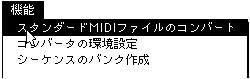
First, select "Convert Standard MIDI File" from the "Function" menu. Figure 2-36 Selecting "Convert SMF File"
- Use the "Add", "Insert", and "Folder" buttons to add the SMF file created in "2-4: Make a song" to the list, and click the execute button to convert.
Figure 2-37 Converting SMF files
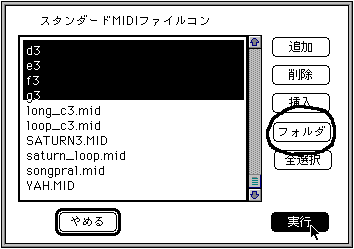
- Select all SMF files in the folder by selecting any file in the folder that contains the file you want to select. ( * Multiple selections are possible )
- 3) Creation of sequence data
- The conversion file created in 2) is [Original file name]. It will be CNV.
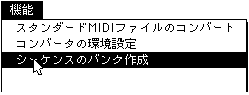
Select Bank Sequence from the Features menu. Figure 2-38 Select “Sequence Banking”
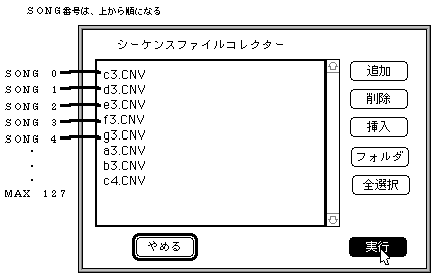
- The converted data created in 2) [original file name]. Collect CNV files as sequence data.
At this time, the SONG numbers are numbered 0, 1, 2, ..... in order from the top.
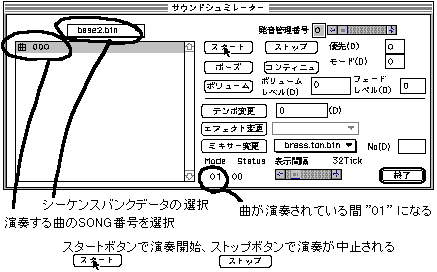
This SONG number is important because it is specified when playing a song. Figure 2-39 Sequence file collector screen
- 4) Creating a map
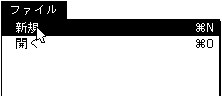
- Select "New" to create a new file.
Figure 2-40 Creating a new map file
- Up to 128 map information can be stored in one file.
When new, map 0 is displayed as an edit map.
Create information that summarizes tone data and song data. Figure 2-41 Map Edit Window
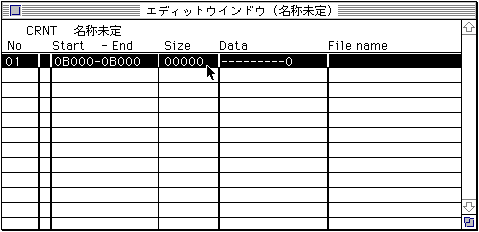
- On the edit window, double-click the part of the list where the data is set with the mouse.
- Since there is only one data in the newly created map, add the missing data with "New data" in the "Edit" menu.
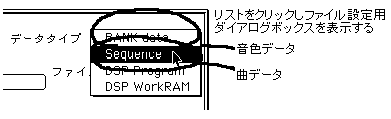
In this way, information that summarizes tone color data and song data is created.- Set the data etc. on the screen shown in Fig. 2-42. To select the data type, click in the frame on the right side of "Data type" to open the pop-up menu shown in Fig. 2-43, and select the desired data type.
Figure 2-42 Data edit window
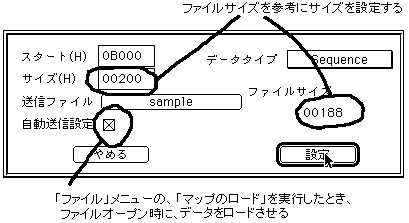
Figure 2-43 Data type settings
- 5) Data loading
- Select Launch Map to send the data to the target.
Figure 2-44 Choosing "Launch Map"
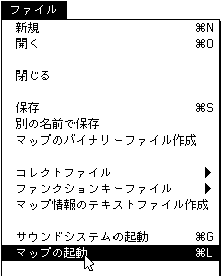
- At this time, if the sound system has not been started, select "Start Sound System" from the "File" menu to start the sound system as well.
- At this point, check the following points in the edit map window.
Figure 2-45 Edit Map Window
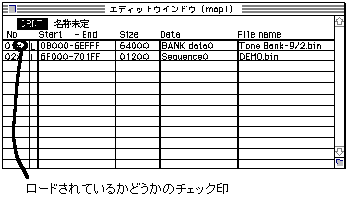
- 6) Song performance
- Select "Sound Simulator" from the "Function" menu to display the sound simulator screen.
Figure 2-46 Selection of "Sound Simulator"
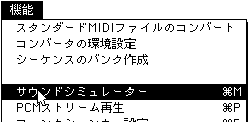
Figure 2-47 Sound simulator screen
- If you are not satisfied with the sound, modify the data with each software and repeat the work such as linking and simulating.
Note on map data size
- If the target is a "sound box", it has more memory for sound than Saturn, so please be careful not to exceed 7FFFFH in the final data of the finally created map.
- In addition, SGL sound related functions allocate 78,000H or more for PCM playback, so when using SGL and performing PCM stream playback, make sure that the last data of the map does not exceed 77FFFH. ..
- 7) Creating a binary file of the map
- Select "Create map information text file" to create a map data file to be placed on Saturn.
Figure 2-48 Selecting "Create Text File for Map Information"
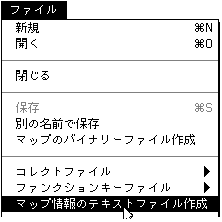
- With this, all the song data is completed, but the data to be actually put on Saturn requires at least the binary data of the tone file used in the map, the sequence data, the binary file of the map, and the sound driver file.
Also, if you are using a DSP, you will need an additional DSP program file. Figure 2-49 Song data file to pass to the programmer
| Sound driver | Map binary | Tone data | Sequence data | DSP program file |
 |  |  |  |  |
Note: File names other than the sound driver are decided when creating the file.- In addition, when one map data has a size that can be stored in the memory of the sound CPU 68000 at a time, it is possible to save the trouble of the game program by creating a dump file in which the tone color data and the sequence data in one map are combined. I can do it.
With the data loaded, select Combine Outgoing Files from the Features menu to create a dump file. Figure 2-50 Select "Combine Outgoing Files"
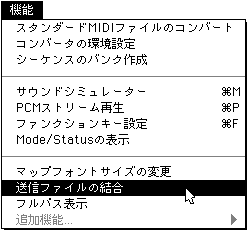
- In addition to this file, the only files required for the game are the sound driver file and map file. Figure 2-51 Song data file to be passed to the programmer (using a dump file)
| Sound driver | Map binary | Combined file |
| |  |
Note: File names other than the sound driver are decided when creating the file.- All you have to do is actually incorporate it into the game and play the song, but for how to incorporate the sound data into the game program, refer to " Chapter 2: Sound Data" in "Data Transfer". Please give me.
