 ★ Graphic Tools Guide ★ Sega Painter User's Manual /
▲ Back | Forward ▼
Sega Painter User's Manual / 2. Menu
File | Edit | Image | Options | Special | Window
■ Window menu
- ● Monitor display
- Display the monitor window. If it is already displayed, bring it to the front.
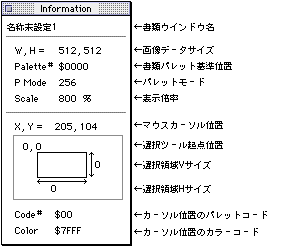
- ● Information display
 I
I - Display the information window.
- ● Color picker display
- Display the color picker window.
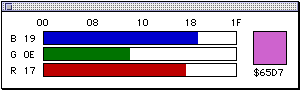
- You can change the color code of the currently selected palette.
RGB Change the RGB value by clicking or dragging each color bar part. - ● Palette display
- Display the palette window.
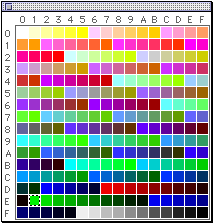
- Select the foreground color for drawing by clicking on each color part.
You can also call the color picker and change the color code by double-clicking on the color part. - ● Pattern display
- Display the pattern window.
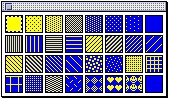
- Select the pattern for drawing by clicking the pattern part.
- ● Panel display
- Display the animation panel.
See the document " 5. Animation " for more information. - ● Template display
- Display the template.

 Print
Print- Print the document.
 keep
keep- Save the document.
 Make the background color transparent
- Set / cancel whether to treat the background color as transparent when pasting image data.
 Image optimization
- Set / cancel whether to optimize the color information when pasting the image data.
 Show grid when moving
- Set / cancel whether to display the grid when dragging the floating image data.
 grid
grid- Set / cancel whether to display the grid.
 Grid settings
- Make grid settings.
 Always adsorb
- Set / cancel the grid adsorption process.
 Selection tool settings
- Make selection tool settings.
 Target SW
- Disconnects and reconnects with the target.
(This button cannot be operated if the target is not connected)  Monitor display position
- Specifies where the currently working document is displayed in the monitor window.
(This button cannot be operated if the target is not connected) - ● Pattern editing
- Display the pattern edit window and edit the pattern.
The pattern to be edited is the pattern selected at that time.
Select the pattern you want to edit from the pattern window as needed.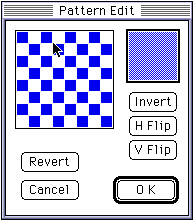
- You can edit in pixel units by clicking and dragging in the editing area.
- Invert: Inverts pixel ON / OFF.
- H Flip: Flip the entire pattern.
- V Flip: V flips the entire pattern.
- Revert: Returns to the edit start state.
- ● Document selection
- Select the currently open document.
▲ Back | Forward ▼
★ Graphic Tools Guide ★ Sega Painter User's Manual /
Copyright SEGA ENTERPRISES, LTD., 1997